
Integrating your selected MMP with SearchAds.com is a breeze! You can do it in a couple of simple steps. Let's look into how you can complete the integration process within minutes.
Getting the API Key from SearchAds.com
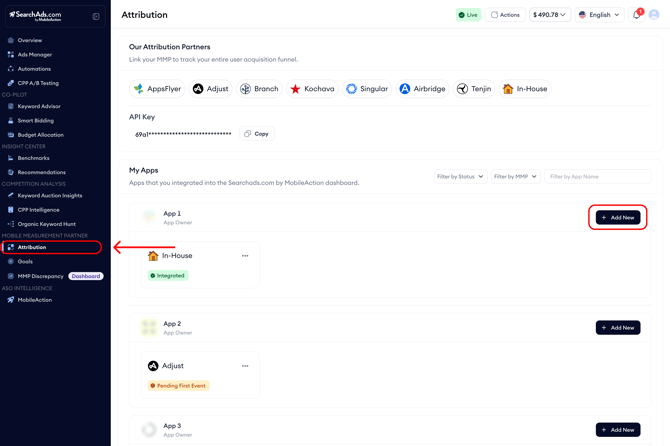
First of all, you need to obtain your API key from the SearchAds.com dashboard. Go to the SearchAds.com platform and locate the “Attributions” section at the end of the dashboard.
You'll find the API Key on this page right when you land on it. Click the “+Add new” button next to the app you have connected with the platform to start the integration process on the platform.
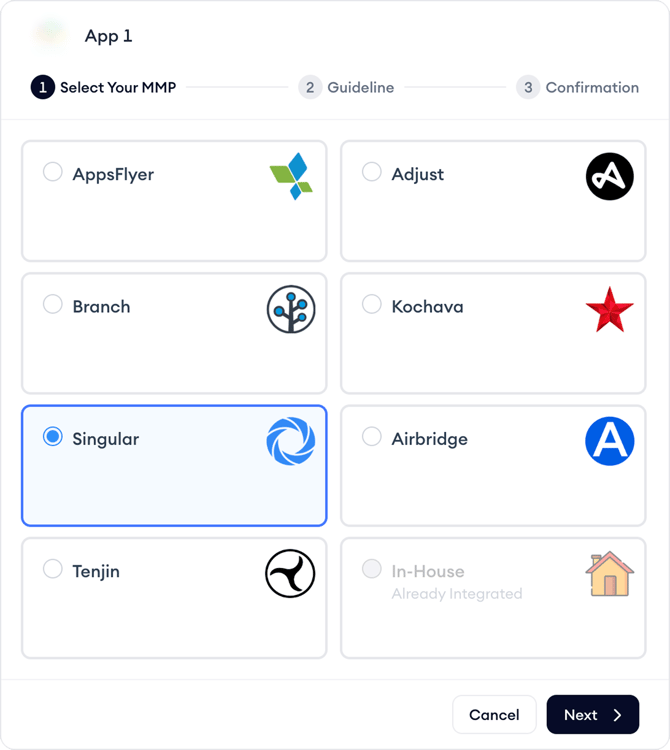
A 3-step pop-up will appear. Select Singular from the options listed on the pop-up that appears and click Next.
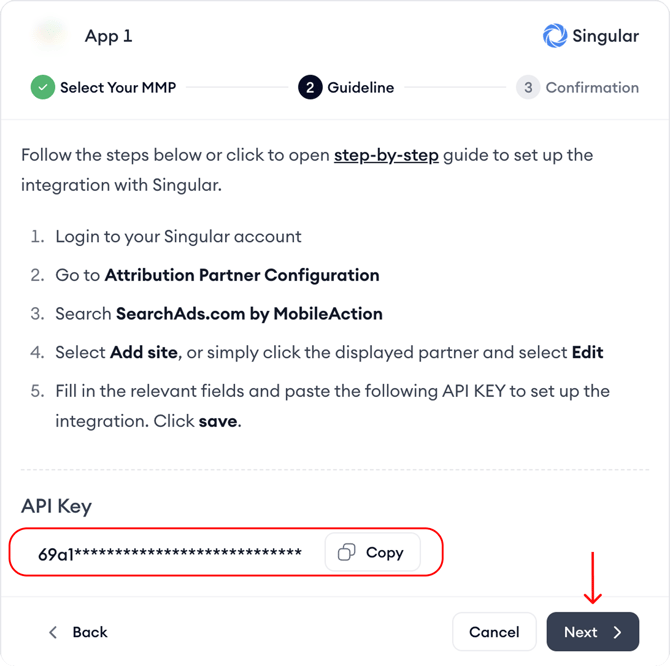
The next pop-up will provide instructions on how to set up the integration and the API Key you need to use to complete the process.
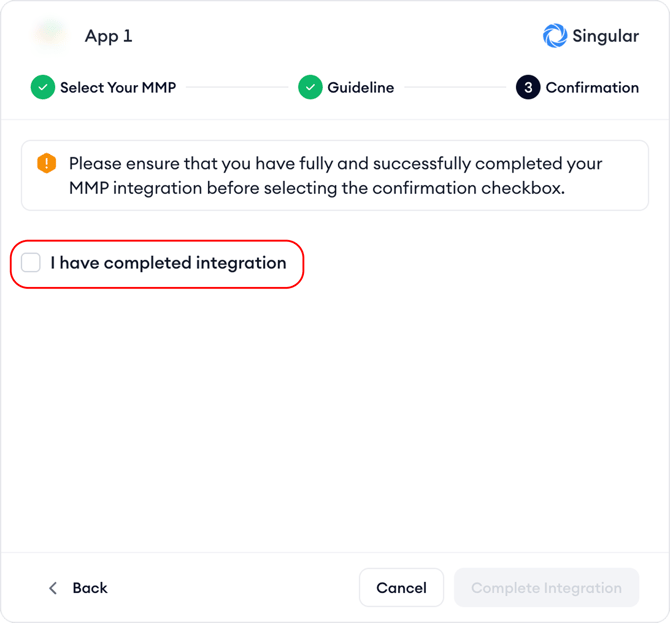
After you complete the integration in Singular, remember to click on the "I have completed integration" checkbox and click the "Complete Integration" button.
To set up SearchAds.com on Singular:
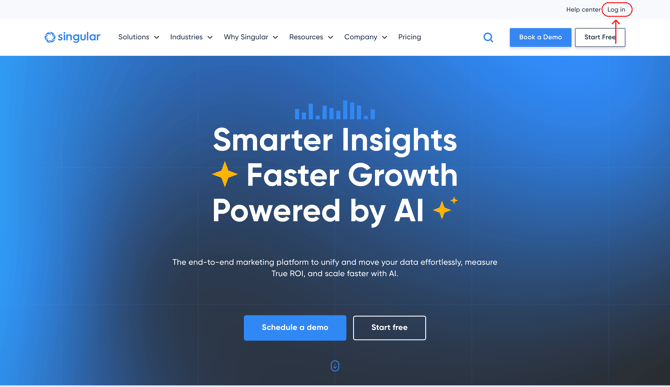
Start by logging in to your Singular account.
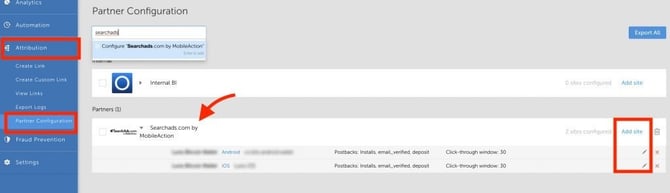
Under the heading Attribution, select Partner Configuration. Then use the filter and search for SearchAds.com by MobileAction.
Select Add site, or click the displayed partner and select Edit.
The configuration window will pop up. Here, you will be required to fill out some fields, like the API Key, which you previously got from the SearchAds.com by MobileAction dashboard.
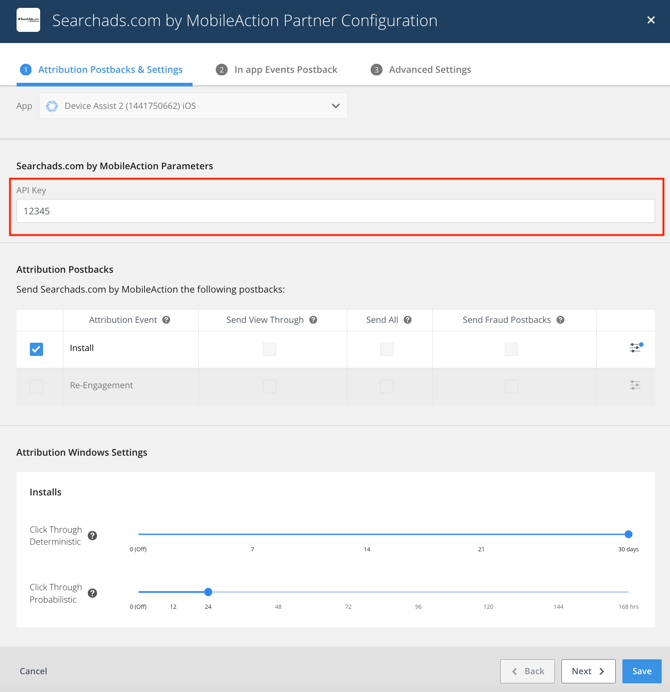
Configuring postbacks
For attribution postbacks, you should select the attribution event and adjust the attribution window settings according to your needs. You'll see the checkboxes next to the attribution event(s) available. Don't forget to select the boxes of data you want to receive.
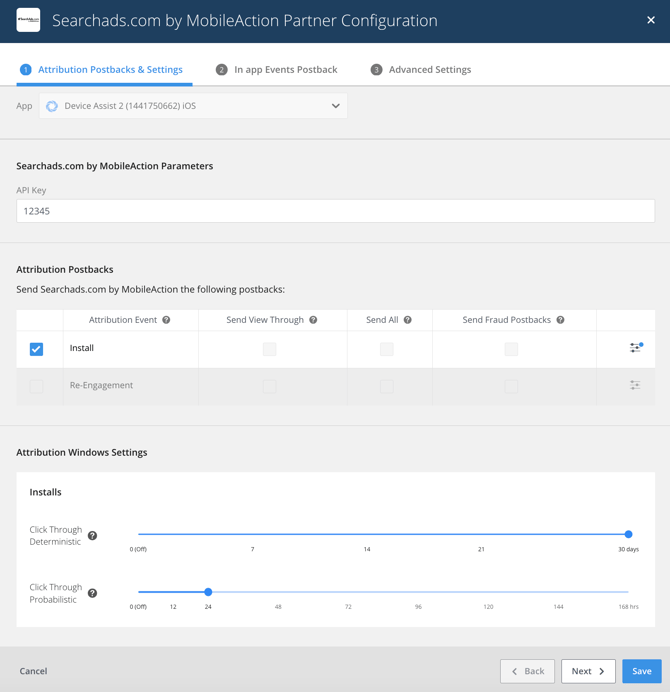
For in-app event-post backs, you need to head to the next tab, "In-app Events Postback." Here, you'll be able to send all events of the selected revenue type, or you can manually select individual revenue events to send.
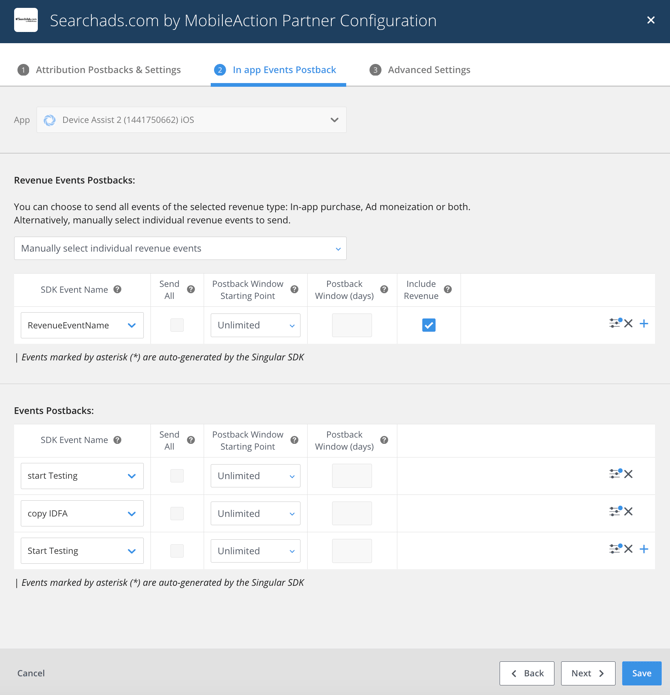
Next, you will have to map your in-app events:
-
Select the (SDK) Event Name exactly the same as the name used in the SDK, and map it to the Event Name (or event ID) provided by the partner.
-
Check the Send Revenue check box for relevant events.
Keep in mind!
If the "Include Revenue" box is not checked, the postback will only send counts of the event.
As soon as in-app events start coming through Singular, you will also be able to see them on the SearchAds.com dashboard.
Remember to repeat these steps for every app you want to integrate.
Once your events start flowing, you will be notified by email.