
The Goals page is where you define and manage the in-app events that matter most for your app, from purchases to subscriptions, trials, and custom in-app events. This is a necessary step for you to see your attribution data.
Whether you’re monitoring early engagement or revenue-driven outcomes, Goals give you a single place to set the foundation.
The Goals table
Let’s start the walkthrough! When you land on the Goals page, you’ll see a table listing all existing goals created across your workspace.
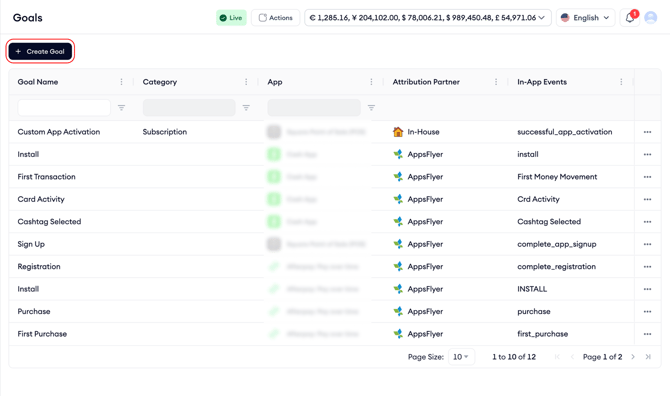
Each row represents a goal and includes key details such as the goal name, category, app, attribution partner, and the in-app events tied to that goal. This layout makes it easy to scan how goals are structured and where they’re being used. At the top of the page, you can create a new goal at any time using the Create Goal button.
To help you narrow things down, the table supports filtering by goal name, category, and app. This is especially helpful when working with multiple apps or managing a large number of goals.
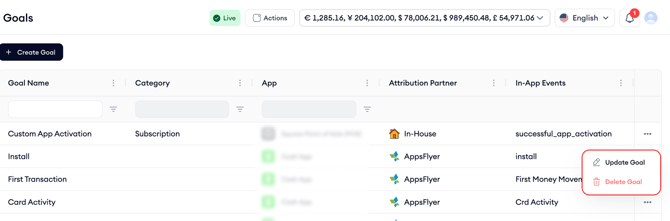
For quick actions, each goal row includes a three-dot menu. From there, you can update an existing goal or delete it if it’s no longer needed.
Creating a new goal
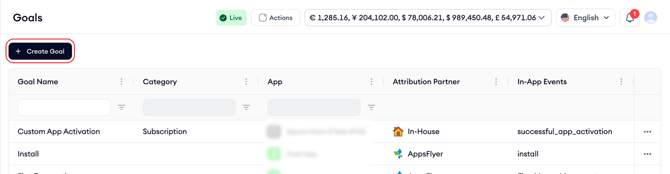
To create a new goal, start by clicking the Create Goal button. This button opens the goal creation drawer.
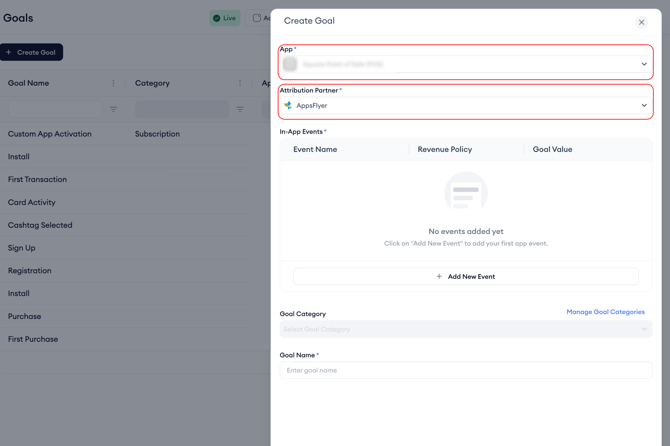
Here, first select the app you want the goal to belong to. Each goal is tied to a single app. Next, choose the mobile measurement partner (MMP). Depending on your setup, this can be an in-house attribution source or a connected MMP.
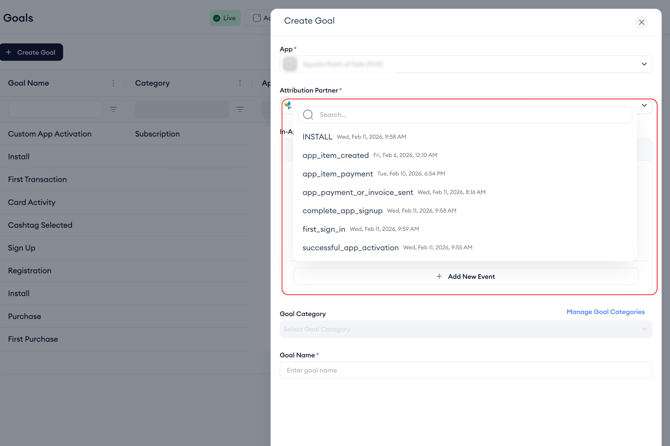
After that, define the in-app events that make up your goal. For each event, you’ll see the event name along with options to select a revenue policy and goal value. Here, you can decide how the goal value is calculated.
If you want to assign a specific monetary value to an event, select Fixed Value and enter the amount manually.
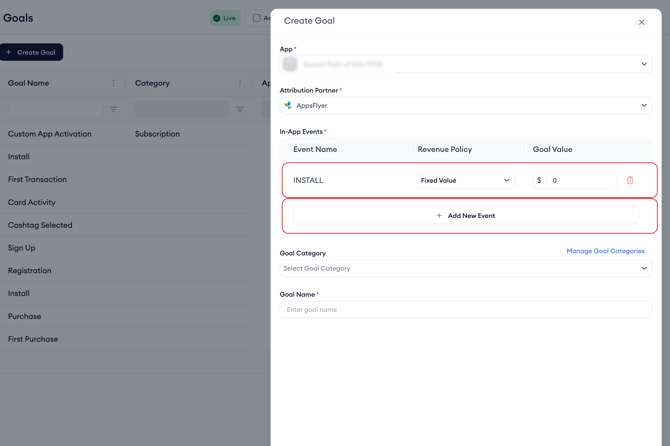
You can include multiple events under a single goal if needed, and you can always add more by selecting Add New Event.
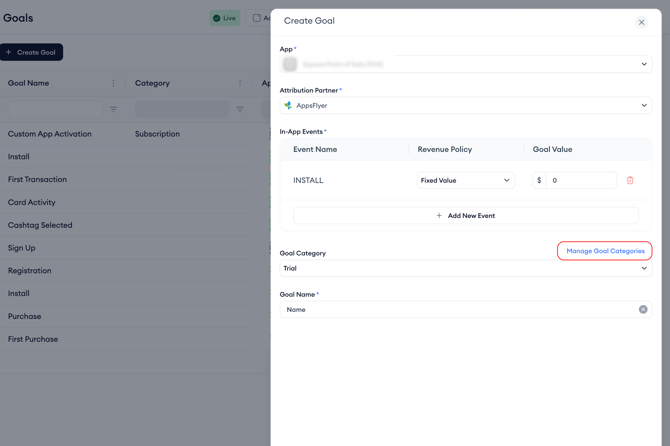
Once the events are set, you need to choose a goal category. Categories help group goals by purpose, such as engagement, purchase, subscription, or trial. If none of the existing categories fit your use case, you can create a custom one directly from this step.
Finally, give your goal a clear, recognizable name. This name will appear across reporting and selection menus, so keeping it descriptive helps avoid confusion later on.
When everything is ready, click Save to create the goal. It will immediately appear in the Goals table.
Creating a custom goal category
As mentioned before, if your tracking needs go beyond the default categories, you can create custom goal categories to better reflect your app’s structure or internal naming. While creating or editing a goal, select Manage Goal Categories next to the category field. This button opens the custom category management window.
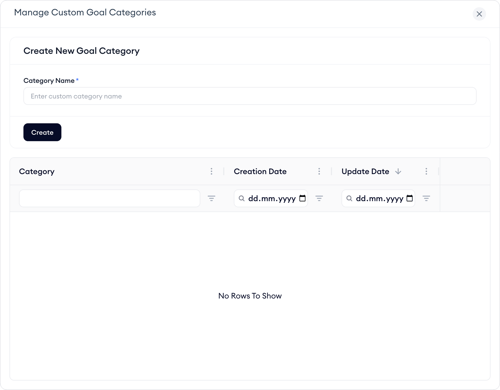
From here, enter a name for your new category and click Create. The category becomes available right away and can be selected for any goal. You’ll also see a list of existing custom categories, along with their creation and update dates. Categories that are no longer needed can be deleted directly from this view.
After the Goals are set, you can go to Ads Manager and choose your goal to see relevant data.
Related links
Need more help?
If you have further questions on the process, contact your dedicated Customer Success Manager or contact the support team via live chat.