---
title: Stay on top of critical app store changes with custom alerts
description: Custom alerts help app growth teams stay informed about the changes that matter most. Learn how to set them.
---
[Skip to content](https://helpcenter.mobileaction.co/en/custom-alerts#main-content)
[](https://www.mobileaction.co/)
- [Website](https://www.mobileaction.co/)
- [Help Center](https://helpcenter.mobileaction.co/en)
Open main navigation
Close main navigation
- [Website](https://www.mobileaction.co/)
- [Help Center](https://helpcenter.mobileaction.co/en)
Advice and answers from the MobileAction Team
- There are no suggestions because the search field is empty.
1. [Help Center](https://helpcenter.mobileaction.co/en?hsLang=en)
2. [Quick Guide to MobileAction](https://helpcenter.mobileaction.co/en/quick-guide-to-mobileaction?hsLang=en)
# Stay on top of critical app store changes with custom alerts
Custom alerts help app growth teams stay informed about the changes that matter most, without needing to check dashboards every day. Instead of tracking rankings, reviews, visibility, or updates manually, you can set alerts that notify you only when specific conditions are met.
This feature is especially useful for ASO managers who want early signals on organic performance, UA managers monitoring keyword movement or store reputation, and teams working across multiple apps and countries who need structured monitoring without notification overload.
With the updated custom alerts experience, every alert is focused on clarity, relevance, and control, so you receive signals you can actually act on.
### Before you begin
Before creating your first alert, there are a few important points to keep in mind.
- Custom alerts can only be created for apps that are already added to your **Tracked Apps** list. This keeps alerts consistent with your workspace and avoids monitoring apps outside your active scope.
- Each alert is created individually through a guided setup flow so that each alert type can offer the right configuration options.
- Each alert includes its own email log so you can review past notifications in context.
- Alert limits may apply depending on the alert type, especially for the number of apps or countries. These limits are in place to keep email and Slack notifications readable. Slack notifications are formatted in tables for easier reading, especially when multiple apps or countries are involved.
### Get started with creating a custom alert
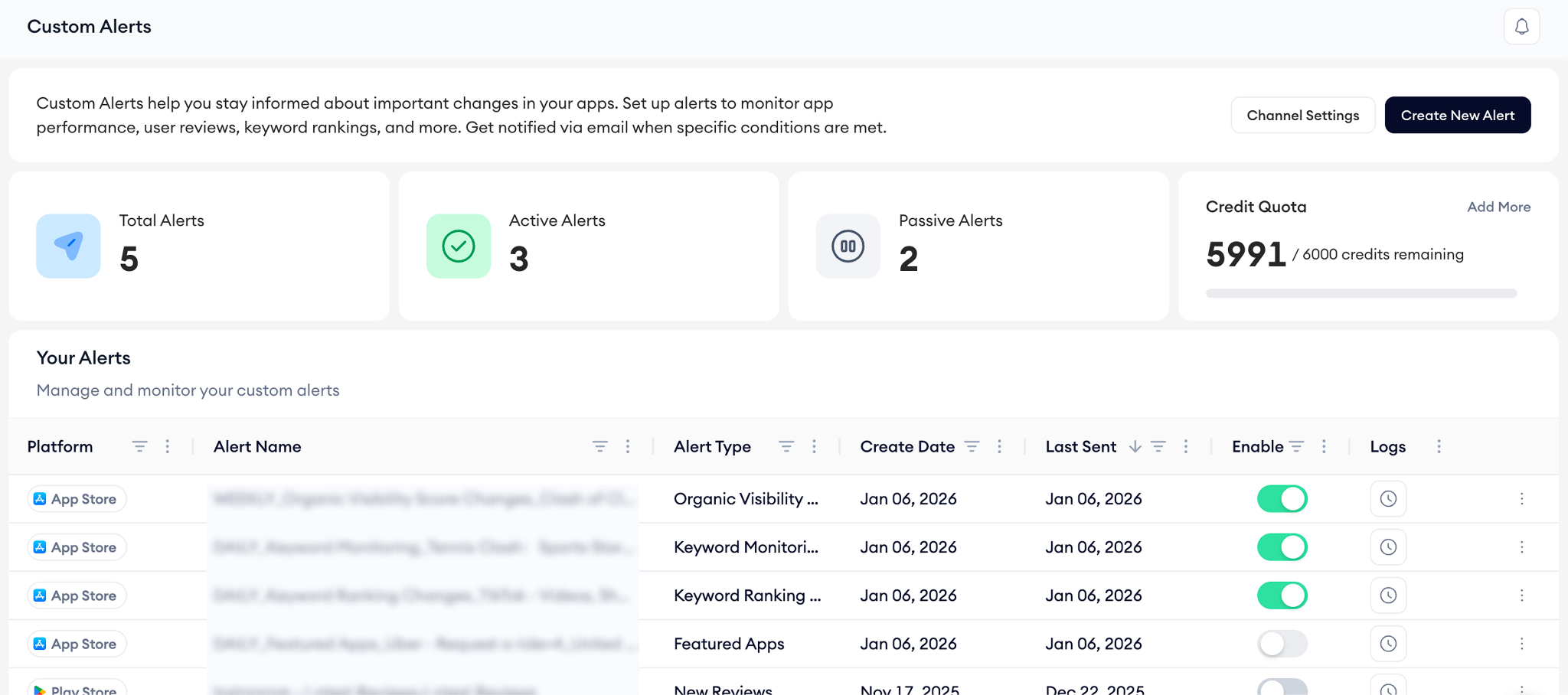
Once you’re ready, go to “**Custom Alerts”** from the left navigation. You’ll land on the main alerts table, where you can view, sort, and manage all existing alerts.
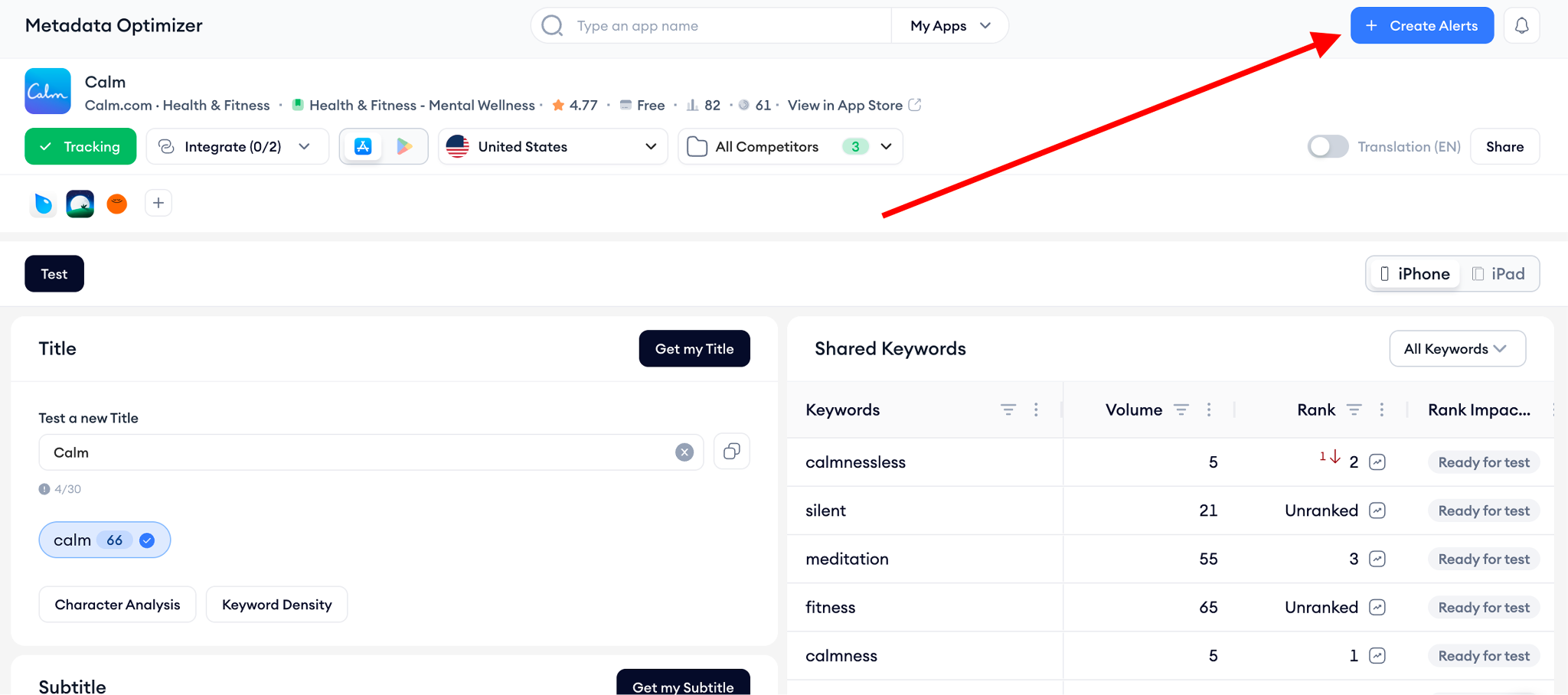
To create a new alert, click “**Create Alert”** and follow the four-step setup.
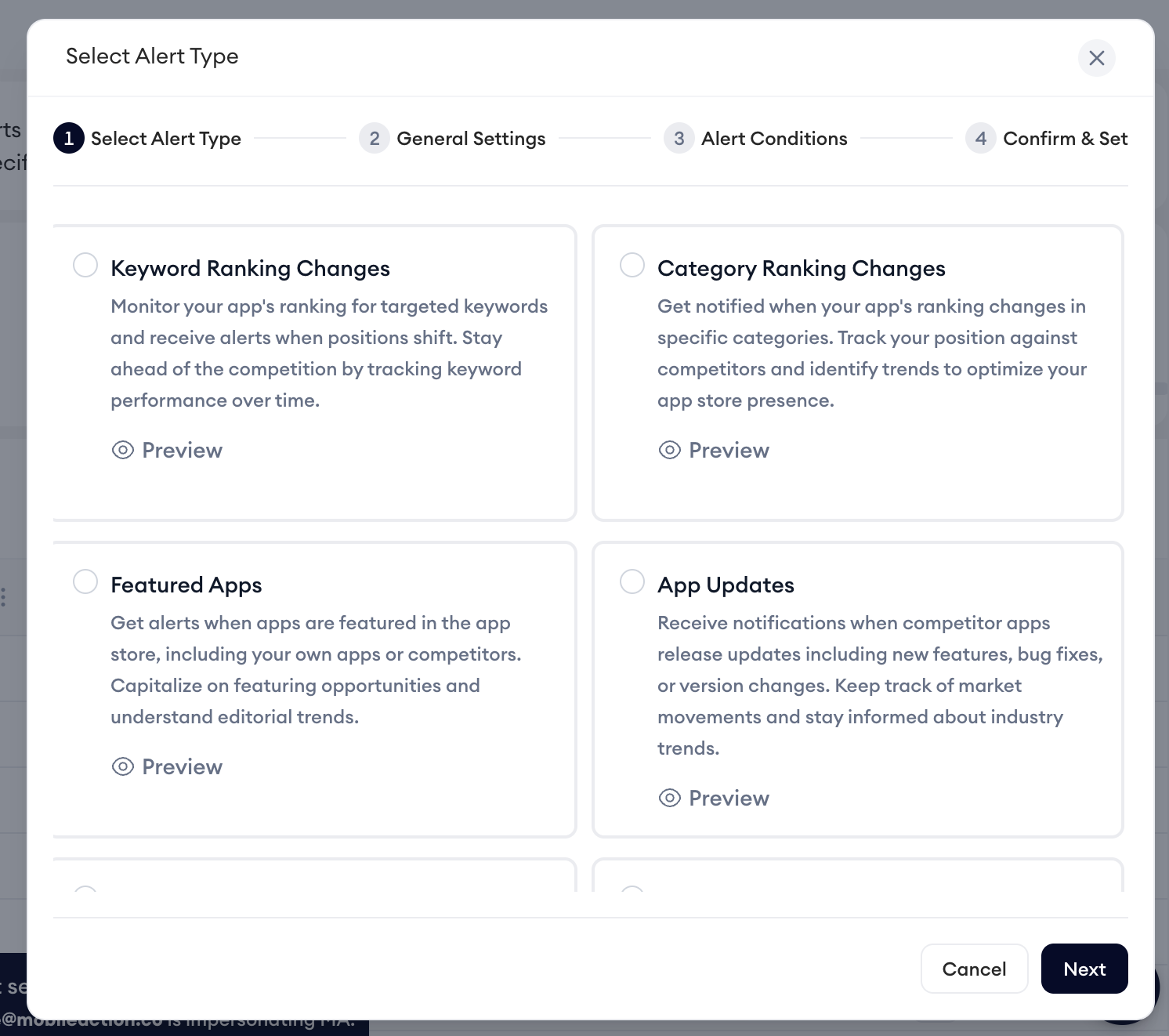
First, select the alert type you want to create from the 8 available options. Each alert type focuses on a specific use case, such as keyword ranking changes, app updates, ratings, or organic visibility. You can use the **Preview** option to see a sample notification layout before moving forward, which helps you understand what kind of insight you’ll receive.
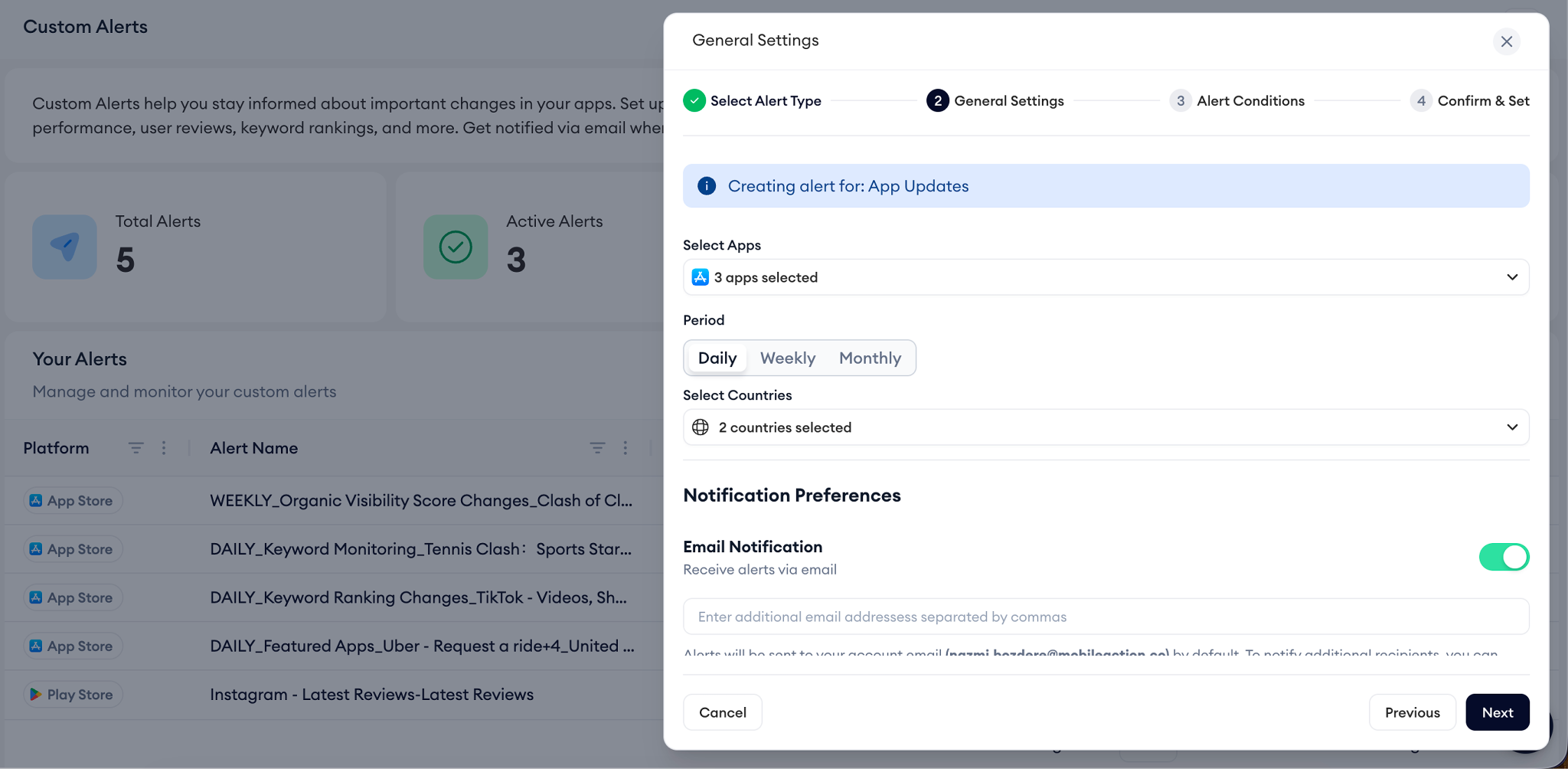
Next, move on to the general settings. Here, you define the foundation of the alert by selecting the app or apps you want to monitor, the countries, the frequency (**Daily, Weekly, or Monthly)**, and how you want to be notified. Depending on the alert type, you can select one app or up to five from your Tracked Apps. You can choose to receive alerts by email, Slack, or both. Keep in mind that the maximum number of countries is limited dynamically by the alert type.
After that, you’ll configure the alert conditions. This is where the alert becomes specific. Conditions differ by alert type and let you define exactly when you want to be notified. For example, for ranking alerts, you can define alerts based on **how much a rank changes** and **where the keyword lands after the change**, allowing you to create more targeted notifications. Or you can filter reviews by star rating, or focus only on certain types of app updates.
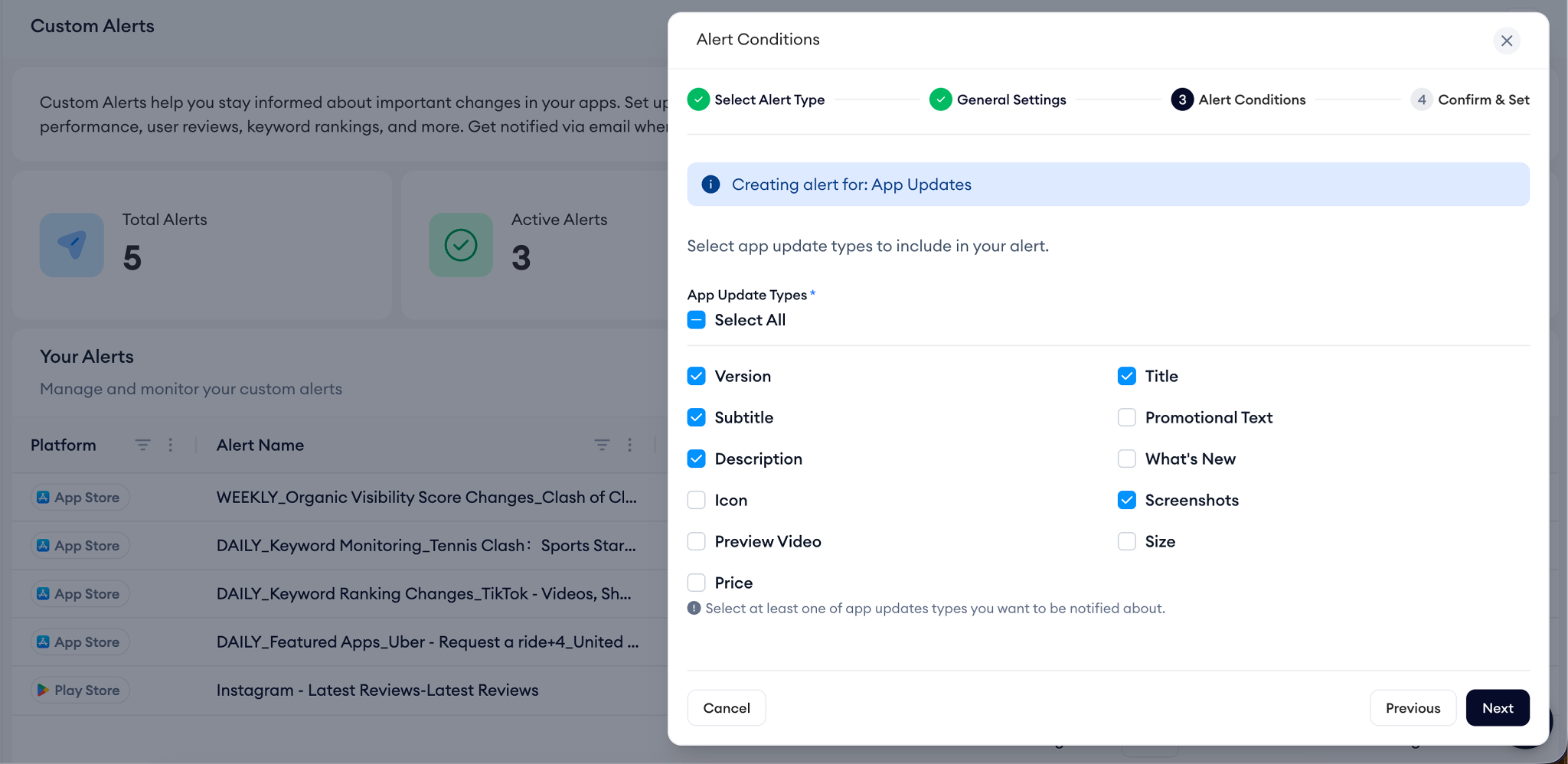
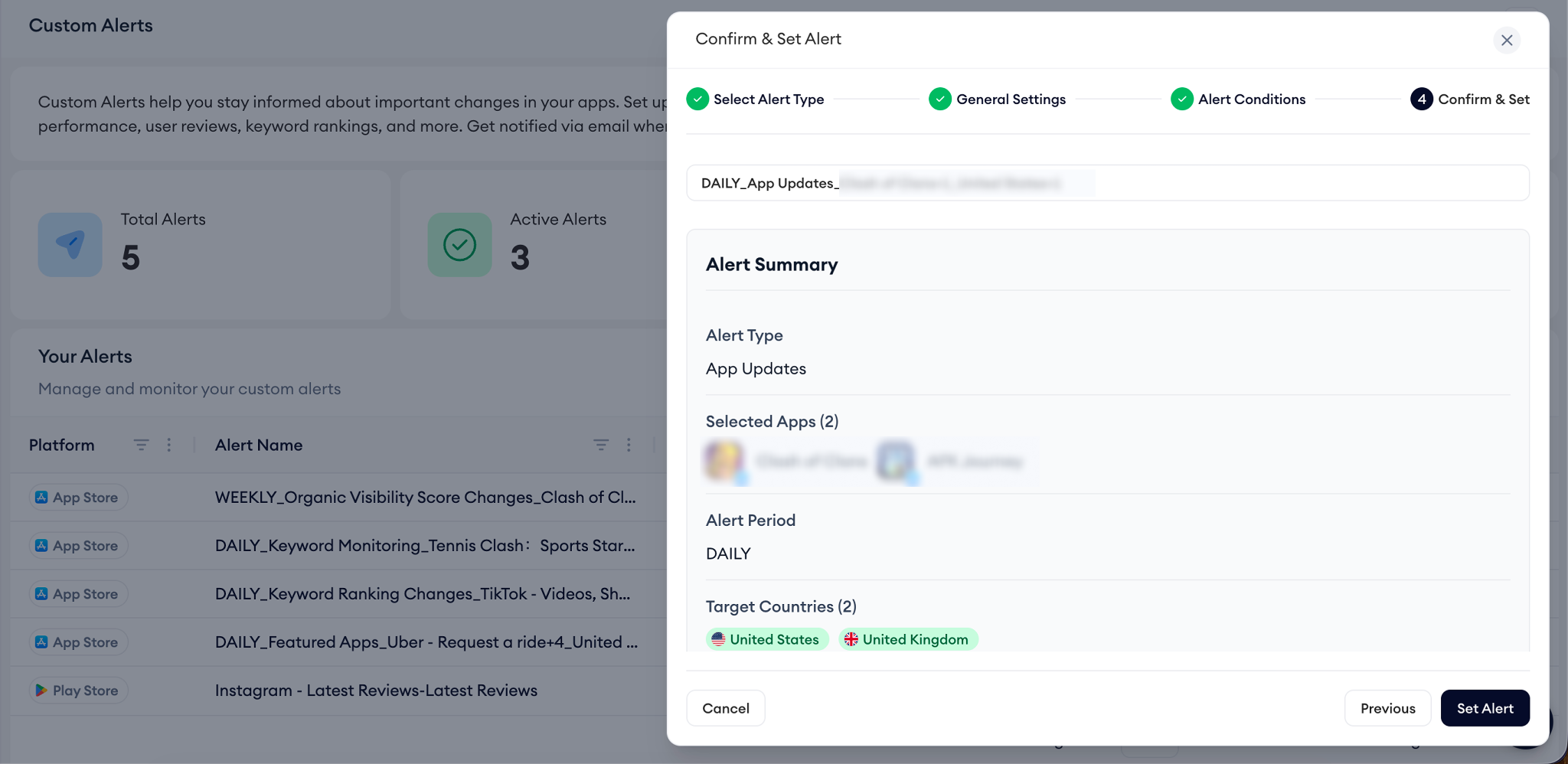
Finally, review your setup in the confirmation step. Give the alert a clear name so it’s easy to recognize later, check the summary, and then activate it. If something looks off, you can always go back without losing your progress.
### Alert types you can create
The table below summarizes each alert type, what it monitors, and how it’s typically used in day-to-day ASO and app marketing workflows.
| **Alert type** | **What it tracks** | **When to use it** |
| --- | --- | --- |
| **Organic Visibility Score Change** | Changes in your app’s overall Organic Visibility Score between periods | When you want to monitor the impact of metadata updates or watch for shifts in organic performance |
| **Reviews** | Incoming user reviews, with an optional rating filter | When you want visibility into user feedback and respond quickly to low-star reviews |
| **Ratings** | Changes in rating volume and score without review text | When you want to track store reputation trends independently from written reviews |
| **Keyword Monitoring** | Ranking changes for selected keywords, including search volume and number of ranking apps (Can only be set for tracked keywords) | When you want close visibility into high-priority keywords with competitive context (Max 200 keywords can be selected) |
| **Keyword Ranking Changes** | Increases, decreases, new entries, or unchanged keyword rankings | When you want alerts for meaningful keyword movement rather than minor daily fluctuations |
| **Category Ranking Changes** | Rank increases, decreases, or first-time category rankings | When you need insight into category-level performance changes |
| **App Updates** | Changes to app metadata, creatives, pricing, or version information and more | When you want to stay informed about updates to your own apps or competitors |
| **Featured Apps** | App Store featuring activity by tab and category | When you want to track featuring visibility and opportunities |
### Pro tips for using custom alerts
- Start with fewer, more focused alerts rather than covering everything at once. Alerts work best when they highlight changes that require attention, not routine fluctuations.
- For keyword-related alerts, use rank thresholds instead of tracking every movement. This helps you focus on meaningful shifts, such as entering the top results or dropping out of key positions.
- When monitoring reviews, combine star-rating filters with Slack notifications so your team can respond quickly without checking inboxes.
- Review alert performance periodically. If an alert triggers too often or not at all, adjusting conditions usually brings it back into balance.
### Deprecated alert types and levels
As part of the recent updates to custom alerts, some alert types and alert levels have been removed. These changes were made to keep alerts more focused, reduce noise, and ensure users receive notifications that are directly tied to the apps they actively track.
The following alert types and alert levels are no longer supported and have been deprecated as part of the custom alerts update.
#### Deprecated alert levels
- **Category-level alerts**
- **Publisher-level alerts**
These alert levels allowed monitoring beyond individual apps, which often resulted in broad or indirect signals that were difficult to act on in daily ASO workflows.
#### Deprecated alert types
- Alerts created on **non-tracked apps**
- Alerts relying on **category-wide or publisher-wide changes** rather than app-specific signals
These alert types have been removed to ensure alerts are tied only to apps you actively track, improving data consistency and relevance.
### What happens if you already have these alerts
If you created alerts using deprecated types or levels before this update:
- **Active legacy alerts** will continue to run, and you will keep receiving notifications.
- **Inactive legacy alerts** cannot be reactivated.
- If a legacy alert is **deleted**, it cannot be recreated.
- Deprecated alert types and levels will not appear as options when creating new alerts.
To maintain full coverage, we recommend recreating important alerts using the currently supported alert types and app-level monitoring options.
Custom alerts are built to help you stay informed without distraction. By setting clear conditions and focusing on the signals that matter to your goals, you can monitor performance shifts, user feedback, and store activity in a way that fits naturally into your daily workflow.
If you’d like help deciding which alerts to set up or want a second look at your configurations, reach out to your Customer Success Manager or start a conversation through live chat. We’re happy to help you get the most out of custom alerts.
- [Quick Guide to MobileAction](https://helpcenter.mobileaction.co/en/quick-guide-to-mobileaction?hsLang=en)
- [MobileAction CMP](https://helpcenter.mobileaction.co/en/mobileaction-cmp?hsLang=en#main-content)
- [Apple Ads Integration](https://helpcenter.mobileaction.co/en/mobileaction-cmp?hsLang=en#apple-ads-integration)
- [AI Assistant](https://helpcenter.mobileaction.co/en/mobileaction-cmp?hsLang=en#ai-assistant)
- [Overview](https://helpcenter.mobileaction.co/en/mobileaction-cmp?hsLang=en#overview)
- [Ads Manager](https://helpcenter.mobileaction.co/en/mobileaction-cmp?hsLang=en#ads-manager)
- [Automations](https://helpcenter.mobileaction.co/en/mobileaction-cmp?hsLang=en#automations)
- [CPP A/B Testing](https://helpcenter.mobileaction.co/en/mobileaction-cmp?hsLang=en#cpp-a-b-testing)
- [AI Keyword Planner](https://helpcenter.mobileaction.co/en/mobileaction-cmp?hsLang=en#ai-keyword-planner)
- [AI Smart Bidding](https://helpcenter.mobileaction.co/en/mobileaction-cmp?hsLang=en#ai-smart-bidding)
- [Budget Allocation](https://helpcenter.mobileaction.co/en/mobileaction-cmp?hsLang=en#budget-allocation)
- [Benchmarks](https://helpcenter.mobileaction.co/en/mobileaction-cmp?hsLang=en#benchmarks)
- [Market Finder](https://helpcenter.mobileaction.co/en/mobileaction-cmp?hsLang=en#market-finder)
- [MMP Integration](https://helpcenter.mobileaction.co/en/mobileaction-cmp?hsLang=en#mmp-integration)
- [ASO Intelligence](https://helpcenter.mobileaction.co/en/aso-intelligence?hsLang=en#main-content)
- [Metadata Optimizer](https://helpcenter.mobileaction.co/en/aso-intelligence?hsLang=en#metadata-optimizer)
- [App Update Timeline](https://helpcenter.mobileaction.co/en/aso-intelligence?hsLang=en#app-update-timeline)
- [Creative Monitoring](https://helpcenter.mobileaction.co/en/aso-intelligence?hsLang=en#creative-monitoring)
- [Localization](https://helpcenter.mobileaction.co/en/aso-intelligence?hsLang=en#localization)
- [Keyword Tracking](https://helpcenter.mobileaction.co/en/aso-intelligence?hsLang=en#keyword-tracking)
- [Competitor Keywords](https://helpcenter.mobileaction.co/en/aso-intelligence?hsLang=en#competitor-keywords)
- [Keyword Inspector](https://helpcenter.mobileaction.co/en/aso-intelligence?hsLang=en#keyword-inspector)
- [Keyword Trends](https://helpcenter.mobileaction.co/en/aso-intelligence?hsLang=en#keyword-trends)
- [Keyword Translator](https://helpcenter.mobileaction.co/en/aso-intelligence?hsLang=en#keyword-translator)
- [Organic CPP Results](https://helpcenter.mobileaction.co/en/aso-intelligence?hsLang=en#organic-cpp-results)
- [ASO Report](https://helpcenter.mobileaction.co/en/aso-intelligence?hsLang=en#aso-report)
- [Visibility Report](https://helpcenter.mobileaction.co/en/aso-intelligence?hsLang=en#visibility-report)
- [Download Share](https://helpcenter.mobileaction.co/en/aso-intelligence?hsLang=en#download-share)
- [Store Analytics](https://helpcenter.mobileaction.co/en/store-analytics?hsLang=en#main-content)
- [Revenue Snapshot](https://helpcenter.mobileaction.co/en/store-analytics?hsLang=en#revenue-snapshot)
- [Organic Acquisition Dashboard](https://helpcenter.mobileaction.co/en/store-analytics?hsLang=en#organic-acquisition-dashboard)
- [Download Report](https://helpcenter.mobileaction.co/en/store-analytics?hsLang=en#download-report)
- [Conversion Funnel View](https://helpcenter.mobileaction.co/en/store-analytics?hsLang=en#conversion-funnel-view)
- [Analytics Overview](https://helpcenter.mobileaction.co/en/store-analytics?hsLang=en#analytics-overview)
- [Search Ads Intelligence](https://helpcenter.mobileaction.co/en/search-ads-intelligence?hsLang=en#main-content)
- [Search Result/App](https://helpcenter.mobileaction.co/en/search-ads-intelligence?hsLang=en#search-result-app)
- [Search Result/Keyword](https://helpcenter.mobileaction.co/en/search-ads-intelligence?hsLang=en#search-result-keyword)
- [Search Result/Competitor](https://helpcenter.mobileaction.co/en/search-ads-intelligence?hsLang=en#search-result-competitor)
- [Today Tab](https://helpcenter.mobileaction.co/en/search-ads-intelligence?hsLang=en#today-tab)
- [Search Tab](https://helpcenter.mobileaction.co/en/search-ads-intelligence?hsLang=en#search-tab)
- [Product Pages](https://helpcenter.mobileaction.co/en/search-ads-intelligence?hsLang=en#product-pages)
- [Top Advertisers](https://helpcenter.mobileaction.co/en/search-ads-intelligence?hsLang=en#top-advertisers)
- [CPP by Keyword](https://helpcenter.mobileaction.co/en/search-ads-intelligence?hsLang=en#cpp-by-keyword)
- [CPP by App](https://helpcenter.mobileaction.co/en/search-ads-intelligence?hsLang=en#cpp-by-app)
- [CPP by Category](https://helpcenter.mobileaction.co/en/search-ads-intelligence?hsLang=en#cpp-by-category)
- [CPP on Ad Networks](https://helpcenter.mobileaction.co/en/search-ads-intelligence?hsLang=en#cpp-on-ad-networks)
- [App Intelligence](https://helpcenter.mobileaction.co/en/app-intelligence?hsLang=en#main-content)
- [Compass Explore](https://helpcenter.mobileaction.co/en/app-intelligence?hsLang=en#compass-explore)
- [Compass Trace](https://helpcenter.mobileaction.co/en/app-intelligence?hsLang=en#compass-trace)
- [Compass Impact](https://helpcenter.mobileaction.co/en/app-intelligence?hsLang=en#compass-impact)
- [App Profile](https://helpcenter.mobileaction.co/en/app-intelligence?hsLang=en#app-profile)
- [Publisher Profile](https://helpcenter.mobileaction.co/en/app-intelligence?hsLang=en#publisher-profile)
- [Featured Apps](https://helpcenter.mobileaction.co/en/app-intelligence?hsLang=en#featured-apps)
- [Category Rankings](https://helpcenter.mobileaction.co/en/app-intelligence?hsLang=en#category-rankings)
- [Reviews](https://helpcenter.mobileaction.co/en/app-intelligence?hsLang=en#reviews)
- [AI Review Reply](https://helpcenter.mobileaction.co/en/app-intelligence?hsLang=en#ai-review-reply)
- [Ratings](https://helpcenter.mobileaction.co/en/app-intelligence?hsLang=en#ratings)
- [Similar Apps](https://helpcenter.mobileaction.co/en/app-intelligence?hsLang=en#similar-apps)
- [In-App Events](https://helpcenter.mobileaction.co/en/app-intelligence?hsLang=en#in-app-events)
- [Promotional Content](https://helpcenter.mobileaction.co/en/app-intelligence?hsLang=en#promotional-content)
- [Top Charts](https://helpcenter.mobileaction.co/en/app-intelligence?hsLang=en#top-charts)
- [Biggest Movers](https://helpcenter.mobileaction.co/en/app-intelligence?hsLang=en#biggest-movers)
- [Biggest Losers](https://helpcenter.mobileaction.co/en/app-intelligence?hsLang=en#biggest-losers)
- [Ad Intelligence](https://helpcenter.mobileaction.co/en/ad-intelligence?hsLang=en#main-content)
- [Creative Analysis](https://helpcenter.mobileaction.co/en/ad-intelligence?hsLang=en#creative-analysis)
- [Advertiser Analysis](https://helpcenter.mobileaction.co/en/ad-intelligence?hsLang=en#advertiser-analysis)
- [Ad Publisher Analysis](https://helpcenter.mobileaction.co/en/ad-intelligence?hsLang=en#ad-publisher-analysis)
- [Developer Analysis](https://helpcenter.mobileaction.co/en/ad-intelligence?hsLang=en#developer-analysis)
- [Top Advertisers](https://helpcenter.mobileaction.co/en/ad-intelligence?hsLang=en#top-advertisers)
- [Top Ad Publishers](https://helpcenter.mobileaction.co/en/ad-intelligence?hsLang=en#top-ad-publishers)
- [Top Creatives](https://helpcenter.mobileaction.co/en/ad-intelligence?hsLang=en#top-creatives)
- [Top Developers](https://helpcenter.mobileaction.co/en/ad-intelligence?hsLang=en#top-developers)
- [App Collections](https://helpcenter.mobileaction.co/en/ad-intelligence?hsLang=en#app-collections)
- [Creative Collections](https://helpcenter.mobileaction.co/en/ad-intelligence?hsLang=en#creative-collections)
- [Troubleshooting](https://helpcenter.mobileaction.co/en/troubleshooting?hsLang=en#main-content)
- [MobileAction CMP Troubleshooting](https://helpcenter.mobileaction.co/en/troubleshooting?hsLang=en#mobileaction-cmp-troubleshooting)
- [ASO Intelligence Troubleshooting](https://helpcenter.mobileaction.co/en/troubleshooting?hsLang=en#aso-intelligence-troubleshooting)
- [Search Ads Intelligence Troubleshooting](https://helpcenter.mobileaction.co/en/troubleshooting?hsLang=en#search-ads-intelligence-troubleshooting)
- [Integrations](https://helpcenter.mobileaction.co/en/integrations?hsLang=en#main-content)
- [MobileAction Integrations](https://helpcenter.mobileaction.co/en/integrations?hsLang=en#mobileaction-integrations)
- [SearchAds.com Integrations](https://helpcenter.mobileaction.co/en/integrations?hsLang=en#searchads-com-integrations)
- [SSO Configuration](https://helpcenter.mobileaction.co/en/integrations?hsLang=en#sso-configuration)
- [Settings](https://helpcenter.mobileaction.co/en/settings?hsLang=en#main-content)
- [MobileAction Settings](https://helpcenter.mobileaction.co/en/settings?hsLang=en#mobileaction-settings)
- [SearchAds.com Settings](https://helpcenter.mobileaction.co/en/settings?hsLang=en#searchads-com-settings)
- [Single Sign-On Configuration Guides](https://helpcenter.mobileaction.co/en/settings?hsLang=en#single-sign-on-configuration-guides)
[](https://www.mobileaction.co)
Build app store marketing on AI, automation and expertise
Copyright © 2025, MobileAction