
A parallel test keeps every custom product page variant live simultaneously, allowing performance to be compared side by side instead of through timed rotation. You have two options for running it: same ad group, different custom product pages, or different ad groups, with the same custom product page.
This method is recommended for users who want to minimize the impact of seasonality by ensuring that all variants run simultaneously under the same market conditions.
You should choose the path that aligns with your current strategy and structure your test. Let’s look into how to do that for each option.
One ad group, multiple custom product pages
When you select a single ad group and assign several custom product pages (including the default product page), the system creates a separate copy of that ad group for the test. The original ad group is paused to ensure that the test environment is unbiased. Because every active, duplicated ad shares the same keywords, bids, and audiences, the only variable you’re measuring is the custom product page performance.
How to set it up
- Open CPP A/B Testing > Create New and name the experiment.
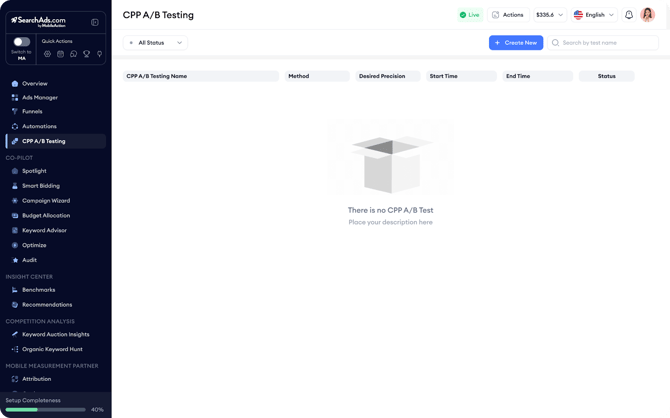
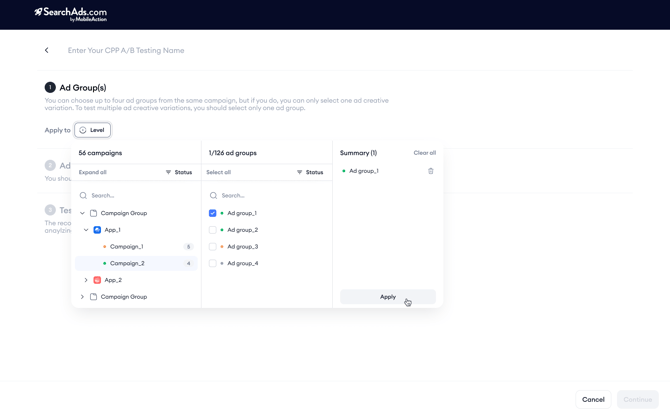
- Select the ad group you’d like to test with.
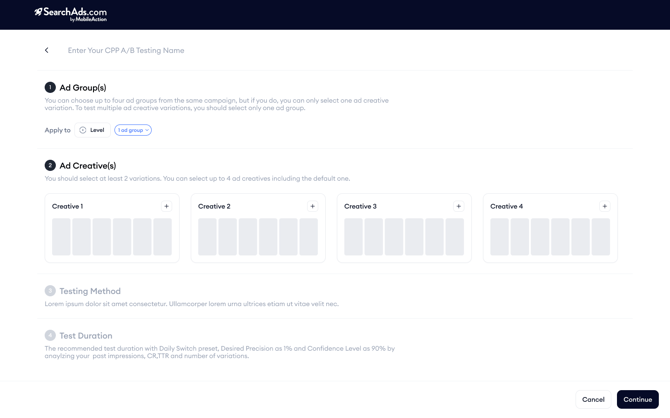
- In Ad Creatives, select 2 to 4 custom product pages (the default page can be one of them).
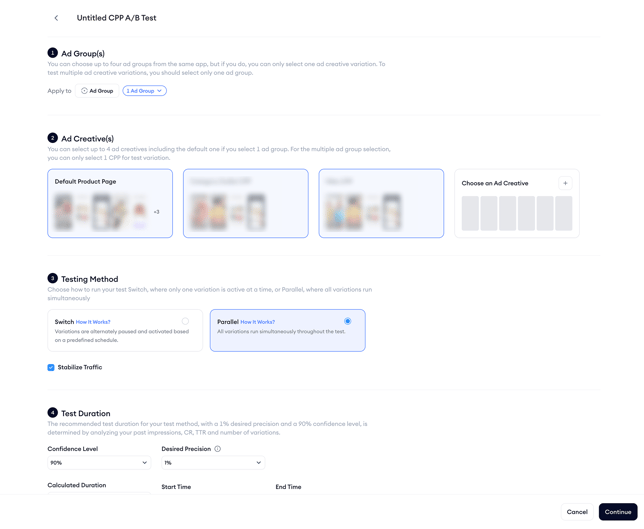
- On the Testing Method screen, choose Parallel. The platform estimates the test length based on your desired precision and shows the start/end dates.
Keep in mind!
In some tests, Apple’s traffic distribution can favor one variant over others disproportionately. If this happens, and one variant receives significantly more traffic than the average of the rest, our system can detect the imbalance and temporarily pause the overperforming variant. The “Stabilize Traffic” setting can be enabled protect the fairness of your test. If your priority is to keep all variants live at all times, you may want to disable this option when running a Parallel test.
- Verify the summary and click Start testing your custom product pages.
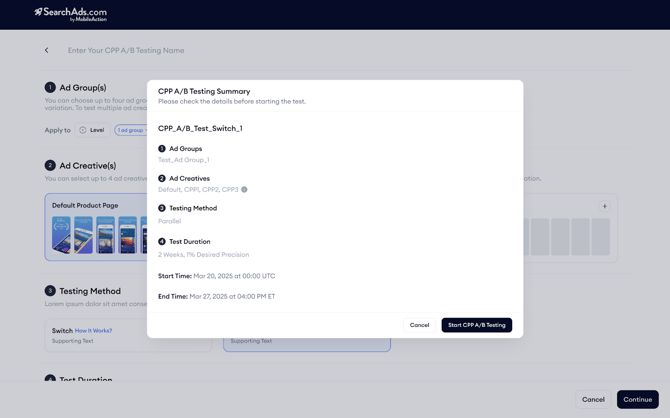
Note: During the tests, Automations will never pause or activate ad groups involved in tests, regardless of user settings, as this would compromise the integrity of the tests. The selected original ad group is paused during the test period. Consequently, Automations, Smart Bidding, and Budget Allocation will not take any actions since these tools do not operate on paused entities.
When the timer ends, the clones are paused, the original ad group resumes, and the table line flips from 'Running' to 'Completed'. If you stop the test before its scheduled end date and time, the system will automatically revert to the original asset, with no manual reactivation required.
Multiple different ad groups, one custom product page
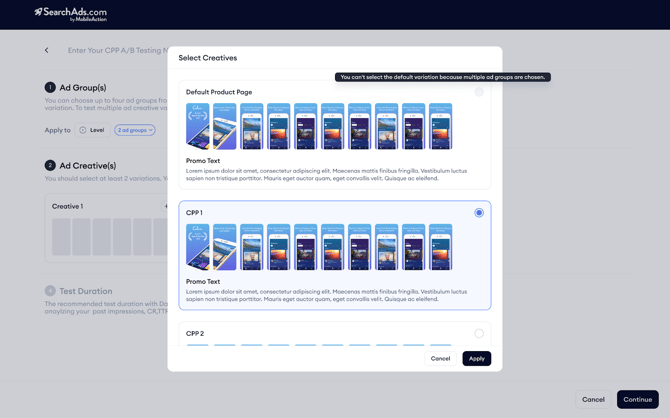
This variant answers a different question: Which ad‑group setup works best for a specific custom product page? You assign the same custom product page to several existing ad groups, create an ad under each ad group with it, and let the ads run concurrently. Keep in mind that this method does not allow including the default product page in the test environment.
How to set it up
- Go to CPP A/B Testing > Create New and give the test a name.
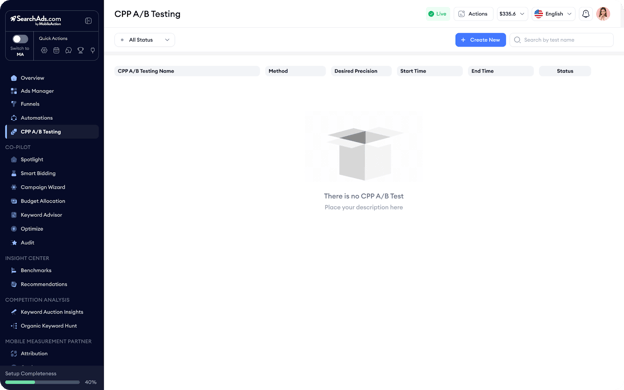
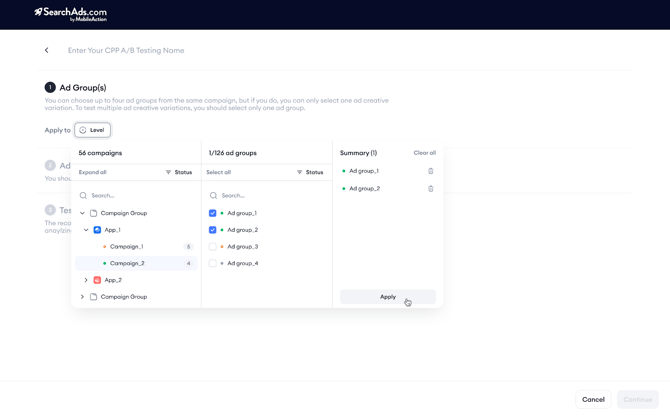
- Pick your ad groups that you’d like to test with.
- In Ad Creatives, select a single custom product page (as previously stated, choosing the default is not possible). The system attaches the selected custom product page to every selected ad group and creates an ad for each ad group with the chosen custom product page.
- The tool recognizes you’re running multiple ad groups and locks the tested entity to Parallel > Ad Groups without the need for method selection. Choose your desired precision (1%–10%) in the Test Duration section after selecting your custom product page. The platform calculates the overall test duration and displays start/end times.
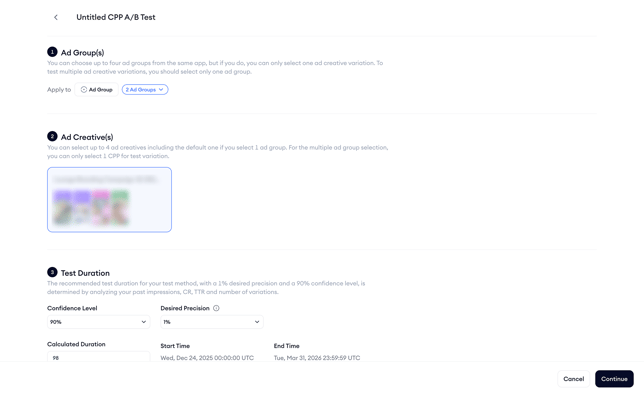
- Confirm the summary and hit Start. All ad groups with the same product page will run side‑by‑side for the entire test period.
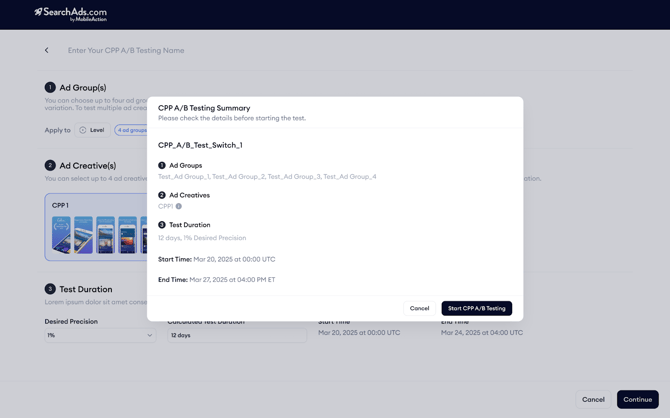
Note: During the test period, the system will block the activation or pause of automated actions on these ad groups, while allowing other automated functions to continue operating, as these ad groups maintain different structural configurations during testing.
When the test ends, test-related ads are paused, and original ad group activity continues as configured. No manual intervention is required for the test variants; the test table line automatically updates from 'Running' to 'Completed', and the test results will be available. If you stop the test before its scheduled end date and time, the system will automatically revert to the original asset, with no manual reactivation required.
If you have questions along the way, your Customer Success Manager or the live chat team can help you move forward with confidence.