---
title: View apps where your app is listed as similar
description: Listed As A Similar App tab flips the perspective. It shows every product page where your app appears as a similar recommendation.
---
[Skip to content](https://helpcenter.mobileaction.co/en/view-apps-where-your-app-is-listed-as-similar#main-content)
[](https://www.mobileaction.co/)
- [Website](https://www.mobileaction.co/)
- [Help Center](https://helpcenter.mobileaction.co/en)
Open main navigation
Close main navigation
- [Website](https://www.mobileaction.co/)
- [Help Center](https://helpcenter.mobileaction.co/en)
Advice and answers from the MobileAction Team
- There are no suggestions because the search field is empty.
1. [Help Center](https://helpcenter.mobileaction.co/en?hsLang=en)
2. [App Intelligence](https://helpcenter.mobileaction.co/en/app-intelligence?hsLang=en)
3. [Similar Apps](https://helpcenter.mobileaction.co/en/app-intelligence?hsLang=en#similar-apps)
# View apps where your app is listed as similar
Listed As A Similar App tab flips the perspective.
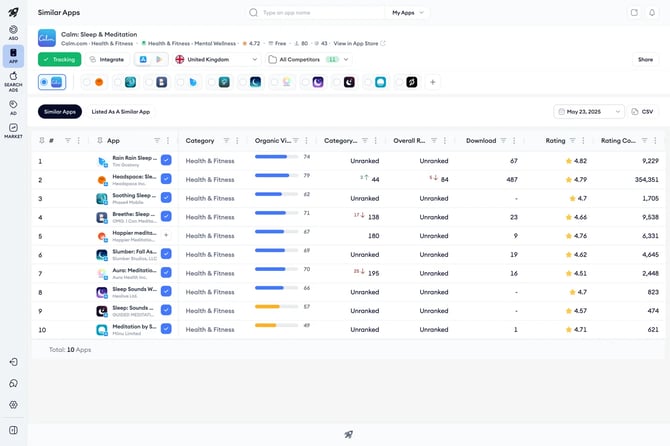
It shows every product page where your app appears as a similar recommendation. Use this tab to measure cross-app visibility, identify apps that may be sending users your way, and spot strategic discovery opportunities.
### Open the view
1. Open Similar Apps from the App Intelligence menu.
2. Select the app you want to analyze.
3. Switch to the Listed As A Similar App tab at the top of the page.
4. Use the App Store and Google Play Store toggle in the top bar to choose which store to view.
### Read the table
Each row represents one app whose product page lists yours as a similar recommendation. Columns include:
- **App:** The app listing yours as similar, and its developer.
- **Category:** The App Store or Google Play Store category the listing app belongs to.
- **Organic Visibility:** A score reflecting how visible the listing app is across the store.
- **Category Ranking:** The listing app’s rank within its category, with arrows showing recent movement.
- **Overall Ranking:** The listing app’s rank across all categories, with arrows showing recent movement.
- **Rating:** The listing app’s average rating.
- **Rating Count:** The total number of ratings the listing app has received.
### What to look for
- Listings under high-visibility apps signal strong cross-app exposure, since users browsing those product pages can discover yours.
- Listings under apps in adjacent categories can highlight unexpected audience overlap and inform partnership or campaign ideas.
- A growing number of listings over time can point to improving recommendation placement in the store algorithm.
### Set the region and date
1. Open the country selector in the top bar and pick the storefront you want to analyze.
2. Open the date picker at the top right and select the date you want to view.
3. The table reloads with the apps that list your app as similar in that market on that day.
### Switch between tracked apps
Use the radio toggles below the app information section to switch which app’s listings you are viewing. Click the plus button to add a competitor to the toggle row.
#### Export the data
1. Apply any country, date, and store selections you want included in the export.
2. Click Export as CSV above the table.
3. The CSV downloads to your device with the current view of the table.
### Related articles
- [View apps listed under your product page](https://helpcenter.mobileaction.co/en/view-apps-listed-under-your-product-page?hsLang=en)
---
### Need more help?
If you have further questions or run into any issues, reach out to your dedicated Customer Success Manager or contact the support team via live chat.
- [Quick Guide to MobileAction](https://helpcenter.mobileaction.co/en/quick-guide-to-mobileaction?hsLang=en)
- [MobileAction CMP](https://helpcenter.mobileaction.co/en/mobileaction-cmp?hsLang=en#main-content)
- [Apple Ads Integration](https://helpcenter.mobileaction.co/en/mobileaction-cmp?hsLang=en#apple-ads-integration)
- [AI Assistant](https://helpcenter.mobileaction.co/en/mobileaction-cmp?hsLang=en#ai-assistant)
- [Overview](https://helpcenter.mobileaction.co/en/mobileaction-cmp?hsLang=en#overview)
- [Ads Manager](https://helpcenter.mobileaction.co/en/mobileaction-cmp?hsLang=en#ads-manager)
- [Automations](https://helpcenter.mobileaction.co/en/mobileaction-cmp?hsLang=en#automations)
- [CPP A/B Testing](https://helpcenter.mobileaction.co/en/mobileaction-cmp?hsLang=en#cpp-a-b-testing)
- [AI Keyword Planner](https://helpcenter.mobileaction.co/en/mobileaction-cmp?hsLang=en#ai-keyword-planner)
- [AI Smart Bidding](https://helpcenter.mobileaction.co/en/mobileaction-cmp?hsLang=en#ai-smart-bidding)
- [Budget Allocation](https://helpcenter.mobileaction.co/en/mobileaction-cmp?hsLang=en#budget-allocation)
- [Benchmarks](https://helpcenter.mobileaction.co/en/mobileaction-cmp?hsLang=en#benchmarks)
- [Market Finder](https://helpcenter.mobileaction.co/en/mobileaction-cmp?hsLang=en#market-finder)
- [App Performance](https://helpcenter.mobileaction.co/en/mobileaction-cmp?hsLang=en#app-performance)
- [MMP Integration](https://helpcenter.mobileaction.co/en/mobileaction-cmp?hsLang=en#mmp-integration)
- [ASO Intelligence](https://helpcenter.mobileaction.co/en/aso-intelligence?hsLang=en#main-content)
- [Metadata Optimizer](https://helpcenter.mobileaction.co/en/aso-intelligence?hsLang=en#metadata-optimizer)
- [App Update Timeline](https://helpcenter.mobileaction.co/en/aso-intelligence?hsLang=en#app-update-timeline)
- [Creative Monitoring](https://helpcenter.mobileaction.co/en/aso-intelligence?hsLang=en#creative-monitoring)
- [Localization](https://helpcenter.mobileaction.co/en/aso-intelligence?hsLang=en#localization)
- [Keyword Tracking](https://helpcenter.mobileaction.co/en/aso-intelligence?hsLang=en#keyword-tracking)
- [Competitor Keywords](https://helpcenter.mobileaction.co/en/aso-intelligence?hsLang=en#competitor-keywords)
- [Keyword Inspector](https://helpcenter.mobileaction.co/en/aso-intelligence?hsLang=en#keyword-inspector)
- [Keyword Trends](https://helpcenter.mobileaction.co/en/aso-intelligence?hsLang=en#keyword-trends)
- [Keyword Translator](https://helpcenter.mobileaction.co/en/aso-intelligence?hsLang=en#keyword-translator)
- [Organic CPP Results](https://helpcenter.mobileaction.co/en/aso-intelligence?hsLang=en#organic-cpp-results)
- [ASO Report](https://helpcenter.mobileaction.co/en/aso-intelligence?hsLang=en#aso-report)
- [Visibility Report](https://helpcenter.mobileaction.co/en/aso-intelligence?hsLang=en#visibility-report)
- [Download Share](https://helpcenter.mobileaction.co/en/aso-intelligence?hsLang=en#download-share)
- [Store Analytics](https://helpcenter.mobileaction.co/en/store-analytics?hsLang=en#main-content)
- [Revenue Snapshot](https://helpcenter.mobileaction.co/en/store-analytics?hsLang=en#revenue-snapshot)
- [Organic Acquisition Dashboard](https://helpcenter.mobileaction.co/en/store-analytics?hsLang=en#organic-acquisition-dashboard)
- [Download Report](https://helpcenter.mobileaction.co/en/store-analytics?hsLang=en#download-report)
- [Conversion Funnel View](https://helpcenter.mobileaction.co/en/store-analytics?hsLang=en#conversion-funnel-view)
- [Analytics Overview](https://helpcenter.mobileaction.co/en/store-analytics?hsLang=en#analytics-overview)
- [Search Ads Intelligence](https://helpcenter.mobileaction.co/en/search-ads-intelligence?hsLang=en#main-content)
- [Search Result/App](https://helpcenter.mobileaction.co/en/search-ads-intelligence?hsLang=en#search-result-app)
- [Search Result/Keyword](https://helpcenter.mobileaction.co/en/search-ads-intelligence?hsLang=en#search-result-keyword)
- [Search Result/Competitor](https://helpcenter.mobileaction.co/en/search-ads-intelligence?hsLang=en#search-result-competitor)
- [Today Tab](https://helpcenter.mobileaction.co/en/search-ads-intelligence?hsLang=en#today-tab)
- [Search Tab](https://helpcenter.mobileaction.co/en/search-ads-intelligence?hsLang=en#search-tab)
- [Product Pages](https://helpcenter.mobileaction.co/en/search-ads-intelligence?hsLang=en#product-pages)
- [Top Advertisers](https://helpcenter.mobileaction.co/en/search-ads-intelligence?hsLang=en#top-advertisers)
- [CPP by Keyword](https://helpcenter.mobileaction.co/en/search-ads-intelligence?hsLang=en#cpp-by-keyword)
- [CPP by App](https://helpcenter.mobileaction.co/en/search-ads-intelligence?hsLang=en#cpp-by-app)
- [CPP by Category](https://helpcenter.mobileaction.co/en/search-ads-intelligence?hsLang=en#cpp-by-category)
- [CPP on Ad Networks](https://helpcenter.mobileaction.co/en/search-ads-intelligence?hsLang=en#cpp-on-ad-networks)
- [App Intelligence](https://helpcenter.mobileaction.co/en/app-intelligence?hsLang=en#main-content)
- [Compass Explore](https://helpcenter.mobileaction.co/en/app-intelligence?hsLang=en#compass-explore)
- [Compass Trace](https://helpcenter.mobileaction.co/en/app-intelligence?hsLang=en#compass-trace)
- [Compass Impact](https://helpcenter.mobileaction.co/en/app-intelligence?hsLang=en#compass-impact)
- [App Profile](https://helpcenter.mobileaction.co/en/app-intelligence?hsLang=en#app-profile)
- [Publisher Profile](https://helpcenter.mobileaction.co/en/app-intelligence?hsLang=en#publisher-profile)
- [Featured Apps](https://helpcenter.mobileaction.co/en/app-intelligence?hsLang=en#featured-apps)
- [Category Rankings](https://helpcenter.mobileaction.co/en/app-intelligence?hsLang=en#category-rankings)
- [Reviews](https://helpcenter.mobileaction.co/en/app-intelligence?hsLang=en#reviews)
- [AI Review Reply](https://helpcenter.mobileaction.co/en/app-intelligence?hsLang=en#ai-review-reply)
- [Ratings](https://helpcenter.mobileaction.co/en/app-intelligence?hsLang=en#ratings)
- [Similar Apps](https://helpcenter.mobileaction.co/en/app-intelligence?hsLang=en#similar-apps)
- [In-App Events](https://helpcenter.mobileaction.co/en/app-intelligence?hsLang=en#in-app-events)
- [Promotional Content](https://helpcenter.mobileaction.co/en/app-intelligence?hsLang=en#promotional-content)
- [Top Charts](https://helpcenter.mobileaction.co/en/app-intelligence?hsLang=en#top-charts)
- [Biggest Movers](https://helpcenter.mobileaction.co/en/app-intelligence?hsLang=en#biggest-movers)
- [Biggest Losers](https://helpcenter.mobileaction.co/en/app-intelligence?hsLang=en#biggest-losers)
- [Ad Intelligence](https://helpcenter.mobileaction.co/en/ad-intelligence?hsLang=en#main-content)
- [Creative Analysis](https://helpcenter.mobileaction.co/en/ad-intelligence?hsLang=en#creative-analysis)
- [Advertiser Analysis](https://helpcenter.mobileaction.co/en/ad-intelligence?hsLang=en#advertiser-analysis)
- [Ad Publisher Analysis](https://helpcenter.mobileaction.co/en/ad-intelligence?hsLang=en#ad-publisher-analysis)
- [Developer Analysis](https://helpcenter.mobileaction.co/en/ad-intelligence?hsLang=en#developer-analysis)
- [Top Advertisers](https://helpcenter.mobileaction.co/en/ad-intelligence?hsLang=en#top-advertisers)
- [Top Ad Publishers](https://helpcenter.mobileaction.co/en/ad-intelligence?hsLang=en#top-ad-publishers)
- [Top Creatives](https://helpcenter.mobileaction.co/en/ad-intelligence?hsLang=en#top-creatives)
- [Top Developers](https://helpcenter.mobileaction.co/en/ad-intelligence?hsLang=en#top-developers)
- [App Collections](https://helpcenter.mobileaction.co/en/ad-intelligence?hsLang=en#app-collections)
- [Creative Collections](https://helpcenter.mobileaction.co/en/ad-intelligence?hsLang=en#creative-collections)
- [Troubleshooting](https://helpcenter.mobileaction.co/en/troubleshooting?hsLang=en#main-content)
- [MobileAction CMP Troubleshooting](https://helpcenter.mobileaction.co/en/troubleshooting?hsLang=en#mobileaction-cmp-troubleshooting)
- [ASO Intelligence Troubleshooting](https://helpcenter.mobileaction.co/en/troubleshooting?hsLang=en#aso-intelligence-troubleshooting)
- [Search Ads Intelligence Troubleshooting](https://helpcenter.mobileaction.co/en/troubleshooting?hsLang=en#search-ads-intelligence-troubleshooting)
- [Integrations](https://helpcenter.mobileaction.co/en/integrations?hsLang=en#main-content)
- [MobileAction Integrations](https://helpcenter.mobileaction.co/en/integrations?hsLang=en#mobileaction-integrations)
- [SearchAds.com Integrations](https://helpcenter.mobileaction.co/en/integrations?hsLang=en#searchads-com-integrations)
- [SSO Configuration](https://helpcenter.mobileaction.co/en/integrations?hsLang=en#sso-configuration)
- [Settings](https://helpcenter.mobileaction.co/en/settings?hsLang=en#main-content)
- [MobileAction Settings](https://helpcenter.mobileaction.co/en/settings?hsLang=en#mobileaction-settings)
- [SearchAds.com Settings](https://helpcenter.mobileaction.co/en/settings?hsLang=en#searchads-com-settings)
- [Single Sign-On Configuration Guides](https://helpcenter.mobileaction.co/en/settings?hsLang=en#single-sign-on-configuration-guides)
[](https://www.mobileaction.co)
Build app store marketing on AI, automation and expertise
Copyright © 2025, MobileAction