---
title: Managing your SearchAds.com account settings
description: Learn how to access and manage settings.
---
[Skip to content](https://helpcenter.mobileaction.co/en/userdetails#main-content)
[](https://www.mobileaction.co/)
- [Website](https://www.mobileaction.co/)
- [Help Center](https://helpcenter.mobileaction.co/en)
Open main navigation
Close main navigation
- [Website](https://www.mobileaction.co/)
- [Help Center](https://helpcenter.mobileaction.co/en)
Advice and answers from the MobileAction Team
- There are no suggestions because the search field is empty.
1. [Help Center](https://helpcenter.mobileaction.co/en?hsLang=en)
2. [Settings](https://helpcenter.mobileaction.co/en/settings?hsLang=en)
3. [SearchAds.com Settings](https://helpcenter.mobileaction.co/en/settings?hsLang=en#searchads-com-settings)
# Managing your SearchAds.com account settings
Just like every account you have, your SearchAds.com account has its own account setting where you can manage your account information, such as your password, language, and profile identity. This article will walk you through managing your account settings.
First, go to Settings on the dashboard. There are two ways to access your account settings: You can either click the little wheel icon on the sidebar or click your profile icon in the upper right corner and then click “Settings.”
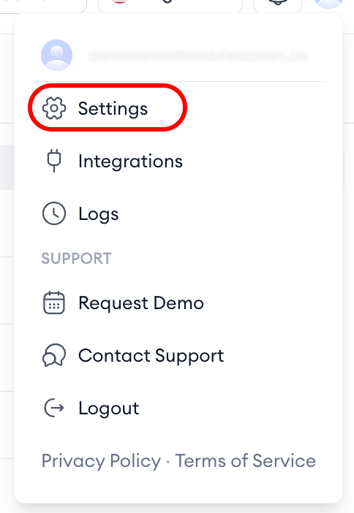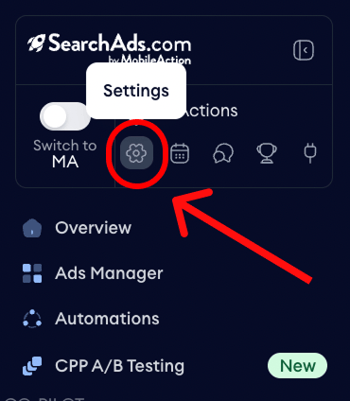
Once you navigate to Settings, you’ll see different setting types on the top bar. Go to “User Details”.
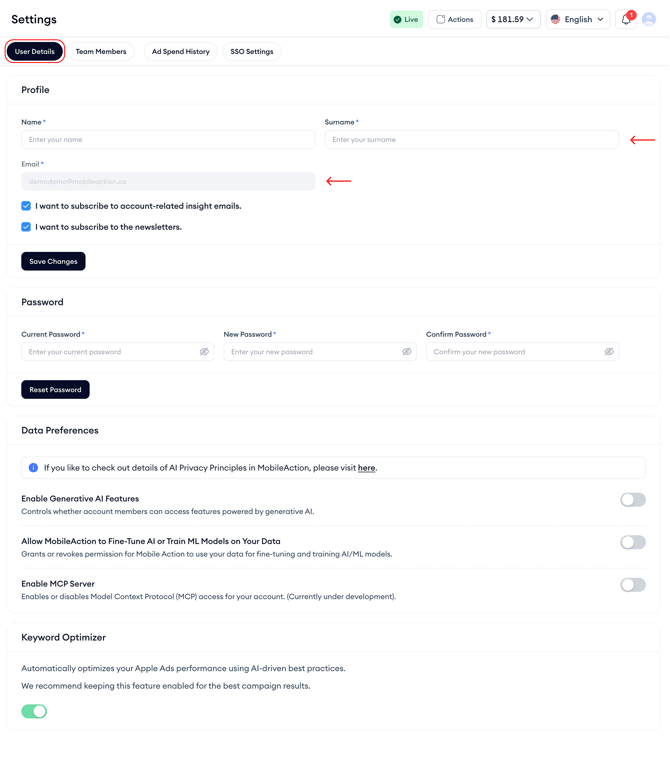
Here, you can see your profile information, such as the name, surname and email address you use to sign in as a member of this account. You can control which emails get sent to you from this section as well.
In the password section, you can change the password you use to sign in by providing your current password for security purposes. Once you click “Reset Password”, your password will be changed, and you will be able to use your new password for future sign-ins. Keep in mind that when you change your password, only your own password will be changed; if you are a member of a team on SearchAds.com, your team members’ passwords will not be affected. Only you will use the new password while signing in with your email address.
The **Data Preferences** section gives you full control over how your team accesses generative AI features and how your data interacts with model training inside SearchAds.com. Whether your focus is privacy, performance uplift, or internal compliance, these settings let you shape the experience according to your needs.
If you have further questions or need assistance, don’t hesitate to contact your dedicated Customer Success Manager or get in touch with us via Intercom!
- [Quick Guide to MobileAction](https://helpcenter.mobileaction.co/en/quick-guide-to-mobileaction?hsLang=en)
- [MobileAction CMP](https://helpcenter.mobileaction.co/en/mobileaction-cmp?hsLang=en#main-content)
- [Apple Ads Integration](https://helpcenter.mobileaction.co/en/mobileaction-cmp?hsLang=en#apple-ads-integration)
- [AI Assistant](https://helpcenter.mobileaction.co/en/mobileaction-cmp?hsLang=en#ai-assistant)
- [Overview](https://helpcenter.mobileaction.co/en/mobileaction-cmp?hsLang=en#overview)
- [Ads Manager](https://helpcenter.mobileaction.co/en/mobileaction-cmp?hsLang=en#ads-manager)
- [Automations](https://helpcenter.mobileaction.co/en/mobileaction-cmp?hsLang=en#automations)
- [CPP A/B Testing](https://helpcenter.mobileaction.co/en/mobileaction-cmp?hsLang=en#cpp-a-b-testing)
- [AI Keyword Planner](https://helpcenter.mobileaction.co/en/mobileaction-cmp?hsLang=en#ai-keyword-planner)
- [AI Smart Bidding](https://helpcenter.mobileaction.co/en/mobileaction-cmp?hsLang=en#ai-smart-bidding)
- [Budget Allocation](https://helpcenter.mobileaction.co/en/mobileaction-cmp?hsLang=en#budget-allocation)
- [Benchmarks](https://helpcenter.mobileaction.co/en/mobileaction-cmp?hsLang=en#benchmarks)
- [Market Finder](https://helpcenter.mobileaction.co/en/mobileaction-cmp?hsLang=en#market-finder)
- [MMP Integration](https://helpcenter.mobileaction.co/en/mobileaction-cmp?hsLang=en#mmp-integration)
- [ASO Intelligence](https://helpcenter.mobileaction.co/en/aso-intelligence?hsLang=en#main-content)
- [Metadata Optimizer](https://helpcenter.mobileaction.co/en/aso-intelligence?hsLang=en#metadata-optimizer)
- [App Update Timeline](https://helpcenter.mobileaction.co/en/aso-intelligence?hsLang=en#app-update-timeline)
- [Creative Monitoring](https://helpcenter.mobileaction.co/en/aso-intelligence?hsLang=en#creative-monitoring)
- [Localization](https://helpcenter.mobileaction.co/en/aso-intelligence?hsLang=en#localization)
- [Keyword Tracking](https://helpcenter.mobileaction.co/en/aso-intelligence?hsLang=en#keyword-tracking)
- [Competitor Keywords](https://helpcenter.mobileaction.co/en/aso-intelligence?hsLang=en#competitor-keywords)
- [Keyword Inspector](https://helpcenter.mobileaction.co/en/aso-intelligence?hsLang=en#keyword-inspector)
- [Keyword Trends](https://helpcenter.mobileaction.co/en/aso-intelligence?hsLang=en#keyword-trends)
- [Keyword Translator](https://helpcenter.mobileaction.co/en/aso-intelligence?hsLang=en#keyword-translator)
- [Organic CPP Results](https://helpcenter.mobileaction.co/en/aso-intelligence?hsLang=en#organic-cpp-results)
- [ASO Report](https://helpcenter.mobileaction.co/en/aso-intelligence?hsLang=en#aso-report)
- [Visibility Report](https://helpcenter.mobileaction.co/en/aso-intelligence?hsLang=en#visibility-report)
- [Download Share](https://helpcenter.mobileaction.co/en/aso-intelligence?hsLang=en#download-share)
- [Store Analytics](https://helpcenter.mobileaction.co/en/store-analytics?hsLang=en#main-content)
- [Revenue Snapshot](https://helpcenter.mobileaction.co/en/store-analytics?hsLang=en#revenue-snapshot)
- [Organic Acquisition Dashboard](https://helpcenter.mobileaction.co/en/store-analytics?hsLang=en#organic-acquisition-dashboard)
- [Download Report](https://helpcenter.mobileaction.co/en/store-analytics?hsLang=en#download-report)
- [Conversion Funnel View](https://helpcenter.mobileaction.co/en/store-analytics?hsLang=en#conversion-funnel-view)
- [Analytics Overview](https://helpcenter.mobileaction.co/en/store-analytics?hsLang=en#analytics-overview)
- [Search Ads Intelligence](https://helpcenter.mobileaction.co/en/search-ads-intelligence?hsLang=en#main-content)
- [Search Result/App](https://helpcenter.mobileaction.co/en/search-ads-intelligence?hsLang=en#search-result-app)
- [Search Result/Keyword](https://helpcenter.mobileaction.co/en/search-ads-intelligence?hsLang=en#search-result-keyword)
- [Search Result/Competitor](https://helpcenter.mobileaction.co/en/search-ads-intelligence?hsLang=en#search-result-competitor)
- [Today Tab](https://helpcenter.mobileaction.co/en/search-ads-intelligence?hsLang=en#today-tab)
- [Search Tab](https://helpcenter.mobileaction.co/en/search-ads-intelligence?hsLang=en#search-tab)
- [Product Pages](https://helpcenter.mobileaction.co/en/search-ads-intelligence?hsLang=en#product-pages)
- [Top Advertisers](https://helpcenter.mobileaction.co/en/search-ads-intelligence?hsLang=en#top-advertisers)
- [CPP by Keyword](https://helpcenter.mobileaction.co/en/search-ads-intelligence?hsLang=en#cpp-by-keyword)
- [CPP by App](https://helpcenter.mobileaction.co/en/search-ads-intelligence?hsLang=en#cpp-by-app)
- [CPP by Category](https://helpcenter.mobileaction.co/en/search-ads-intelligence?hsLang=en#cpp-by-category)
- [CPP on Ad Networks](https://helpcenter.mobileaction.co/en/search-ads-intelligence?hsLang=en#cpp-on-ad-networks)
- [App Intelligence](https://helpcenter.mobileaction.co/en/app-intelligence?hsLang=en#main-content)
- [Compass Explore](https://helpcenter.mobileaction.co/en/app-intelligence?hsLang=en#compass-explore)
- [Compass Trace](https://helpcenter.mobileaction.co/en/app-intelligence?hsLang=en#compass-trace)
- [Compass Impact](https://helpcenter.mobileaction.co/en/app-intelligence?hsLang=en#compass-impact)
- [App Profile](https://helpcenter.mobileaction.co/en/app-intelligence?hsLang=en#app-profile)
- [Publisher Profile](https://helpcenter.mobileaction.co/en/app-intelligence?hsLang=en#publisher-profile)
- [Featured Apps](https://helpcenter.mobileaction.co/en/app-intelligence?hsLang=en#featured-apps)
- [Category Rankings](https://helpcenter.mobileaction.co/en/app-intelligence?hsLang=en#category-rankings)
- [Reviews](https://helpcenter.mobileaction.co/en/app-intelligence?hsLang=en#reviews)
- [AI Review Reply](https://helpcenter.mobileaction.co/en/app-intelligence?hsLang=en#ai-review-reply)
- [Ratings](https://helpcenter.mobileaction.co/en/app-intelligence?hsLang=en#ratings)
- [Similar Apps](https://helpcenter.mobileaction.co/en/app-intelligence?hsLang=en#similar-apps)
- [In-App Events](https://helpcenter.mobileaction.co/en/app-intelligence?hsLang=en#in-app-events)
- [Promotional Content](https://helpcenter.mobileaction.co/en/app-intelligence?hsLang=en#promotional-content)
- [Top Charts](https://helpcenter.mobileaction.co/en/app-intelligence?hsLang=en#top-charts)
- [Biggest Movers](https://helpcenter.mobileaction.co/en/app-intelligence?hsLang=en#biggest-movers)
- [Biggest Losers](https://helpcenter.mobileaction.co/en/app-intelligence?hsLang=en#biggest-losers)
- [Ad Intelligence](https://helpcenter.mobileaction.co/en/ad-intelligence?hsLang=en#main-content)
- [Creative Analysis](https://helpcenter.mobileaction.co/en/ad-intelligence?hsLang=en#creative-analysis)
- [Advertiser Analysis](https://helpcenter.mobileaction.co/en/ad-intelligence?hsLang=en#advertiser-analysis)
- [Ad Publisher Analysis](https://helpcenter.mobileaction.co/en/ad-intelligence?hsLang=en#ad-publisher-analysis)
- [Developer Analysis](https://helpcenter.mobileaction.co/en/ad-intelligence?hsLang=en#developer-analysis)
- [Top Advertisers](https://helpcenter.mobileaction.co/en/ad-intelligence?hsLang=en#top-advertisers)
- [Top Ad Publishers](https://helpcenter.mobileaction.co/en/ad-intelligence?hsLang=en#top-ad-publishers)
- [Top Creatives](https://helpcenter.mobileaction.co/en/ad-intelligence?hsLang=en#top-creatives)
- [Top Developers](https://helpcenter.mobileaction.co/en/ad-intelligence?hsLang=en#top-developers)
- [App Collections](https://helpcenter.mobileaction.co/en/ad-intelligence?hsLang=en#app-collections)
- [Creative Collections](https://helpcenter.mobileaction.co/en/ad-intelligence?hsLang=en#creative-collections)
- [Troubleshooting](https://helpcenter.mobileaction.co/en/troubleshooting?hsLang=en#main-content)
- [MobileAction CMP Troubleshooting](https://helpcenter.mobileaction.co/en/troubleshooting?hsLang=en#mobileaction-cmp-troubleshooting)
- [ASO Intelligence Troubleshooting](https://helpcenter.mobileaction.co/en/troubleshooting?hsLang=en#aso-intelligence-troubleshooting)
- [Search Ads Intelligence Troubleshooting](https://helpcenter.mobileaction.co/en/troubleshooting?hsLang=en#search-ads-intelligence-troubleshooting)
- [Integrations](https://helpcenter.mobileaction.co/en/integrations?hsLang=en#main-content)
- [MobileAction Integrations](https://helpcenter.mobileaction.co/en/integrations?hsLang=en#mobileaction-integrations)
- [SearchAds.com Integrations](https://helpcenter.mobileaction.co/en/integrations?hsLang=en#searchads-com-integrations)
- [SSO Configuration](https://helpcenter.mobileaction.co/en/integrations?hsLang=en#sso-configuration)
- [Settings](https://helpcenter.mobileaction.co/en/settings?hsLang=en#main-content)
- [MobileAction Settings](https://helpcenter.mobileaction.co/en/settings?hsLang=en#mobileaction-settings)
- [SearchAds.com Settings](https://helpcenter.mobileaction.co/en/settings?hsLang=en#searchads-com-settings)
- [Single Sign-On Configuration Guides](https://helpcenter.mobileaction.co/en/settings?hsLang=en#single-sign-on-configuration-guides)
[](https://www.mobileaction.co)
Build app store marketing on AI, automation and expertise
Copyright © 2025, MobileAction