---
title: Understand Compass Explore sections
description: Compass Explore includes multiple sections that help you compare your selected app with competitors.
---
[Skip to content](https://helpcenter.mobileaction.co/en/understand-compass-explore-sections#main-content)
[](https://www.mobileaction.co/)
- [Website](https://www.mobileaction.co/)
- [Help Center](https://helpcenter.mobileaction.co/en)
Open main navigation
Close main navigation
- [Website](https://www.mobileaction.co/)
- [Help Center](https://helpcenter.mobileaction.co/en)
Advice and answers from the MobileAction Team
- There are no suggestions because the search field is empty.
1. [Help Center](https://helpcenter.mobileaction.co/en?hsLang=en)
2. [App Intelligence](https://helpcenter.mobileaction.co/en/app-intelligence?hsLang=en)
3. [Compass Explore](https://helpcenter.mobileaction.co/en/app-intelligence?hsLang=en#compass-explore)
# Understand Compass Explore sections
Compass Explore includes multiple sections that help you compare your selected app with competitors.
Each section provides a summary of a specific area, including rankings, ratings, app updates, creatives, Apple Ads activity, brand protection, app visibility, featuring activity, advertising creatives, metadata, and app details. Use these sections to compare your app and competitors from one dashboard.
### Category Ranking
The **Category Ranking** section shows how your selected app and competitors rank in their categories.
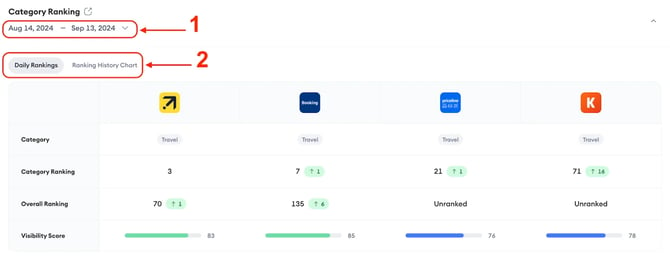
You can use this section to compare ranking movement across the apps in your competitive set.
In this section, you can review:
- The category of each selected app
- Category ranking
- Overall ranking
- Ranking increases or decreases
- Visibility score
#### Change the date range
Use the date range selector in the Category Ranking section to choose the time period you want to review.
The data in this section is updated based on the selected date range.
#### Switch between ranking views
You can view Category Ranking data in two ways:
- **Daily Rankings:** Shows ranking data for the selected day or date range.
- **Ranking History Chart:** Shows ranking movement over time.
Use **Daily Rankings** when you want a direct ranking comparison. Use the **Ranking History Chart** when you want to understand how rankings changed during the selected period.
#### Open Category Rankings
To review more detailed ranking data, select the navigation icon next to the **Category Ranking** section name.
This opens the related **Category Rankings** tool under App Intelligence.
### Review & Rating
The **Review & Rating** section shows ratings and review counts for your selected app and competitors.
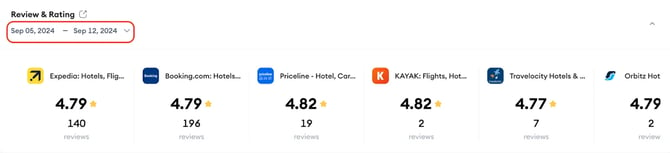
You can use this section to compare user feedback across all selected apps. This section is useful when you want to understand how your app’s rating level compares with competitors without opening each app separately.
In this section, you can review:
- App rating
- Number of reviews
- Rating differences across competitors
You can also adjust the date range when you want to review ratings and reviews for a specific period.
### App Update Timeline
The **App Update Timeline** section shows app updates for your selected app and competitors during the selected time period.
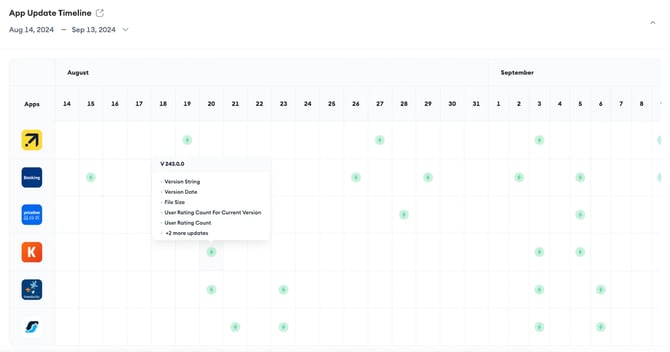
Updates appear in a calendar view. Each green dot represents an app update on that day.
Use this section when you want to:
- See when competitors updated their apps
- Compare competitor update frequency with your own app
- Review update timing across selected apps
- Identify important update activity during a specific period
You can hover over an update indicator to view update details.
### Creative Explorer
The **Creative Explorer** section shows creative assets for your selected app and competitors.
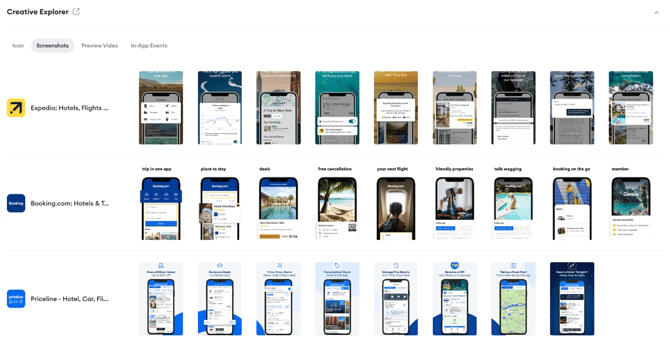
You can use this section to compare creative presentations across apps without opening each app profile separately.
In this section, you can review:
- Icons
- Screenshots
- Preview videos
- In-app events
This helps you quickly compare how apps present themselves in the store.
In the Icon view, you can also compare the colors used by each app and review the most commonly used colors in the selected category.
To review creatives in more detail and be redirected to the Creative Monitoring tool, select the navigation icon next to the **Creative Explorer** section name.
### Apple Ads Intelligence
The Apple Ads Intelligence section provides a summary of Apple Ads visibility and Custom Product Page activity for your selected app and competitors.
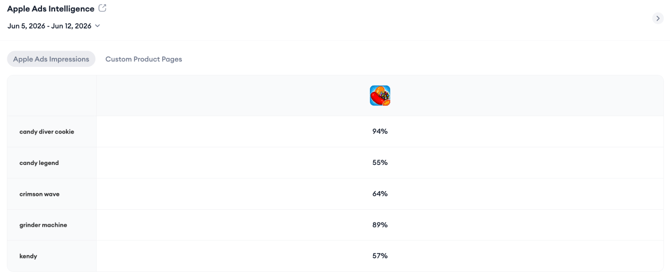
This section includes two views:
- **Apple Ads Impressions**
- **Custom Product Pages**
In the Apple Ads Impressions view, you can compare:
- Paid keywords detected for the selected apps
- Estimated Impression Share for each app and keyword
- Differences in paid visibility across the competitive set
Use this view when you want a quick comparison of how selected apps appear across paid App Store search results.
Use the Custom Product Pages view to review summary information about Custom Product Pages detected for the selected apps.
For a more detailed paid keyword analysis, open the related **Search by App** tool. For a more detailed Custom Product Page analysis, open **CPP Intelligence**.
### Brand Protection
The **Brand Protection** section shows how competitors rank for the brand keywords of your selected main app.
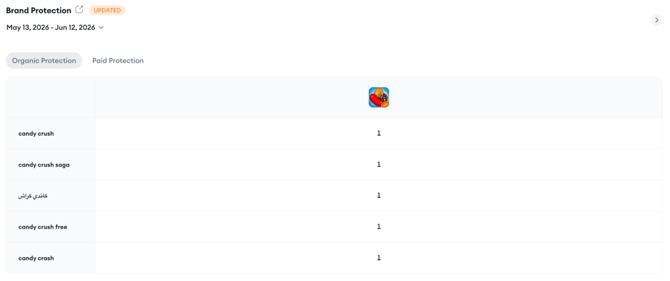
You can use this section to understand whether competitors are appearing on keywords connected to your app’s brand.
This section is available for both:
- Organic rankings
- Paid rankings
In this section, you can review:
- Brand keywords
- Competitor rankings for those keywords
- Ranking increases or decreases
Use this section to monitor competitor activity around your brand terms.
### App Visibility
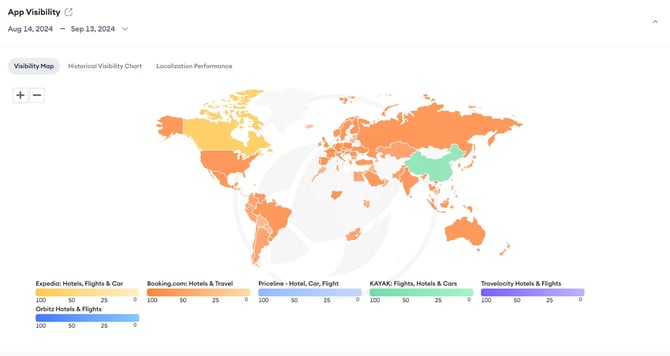
The **App Visibility** section helps you compare visibility and localization performance for your selected app and competitors.
You can use this section to understand how visible each app is across markets and how visibility changes over time.
This section includes different views:
- **Visibility Map:** Shows visibility performance by country.
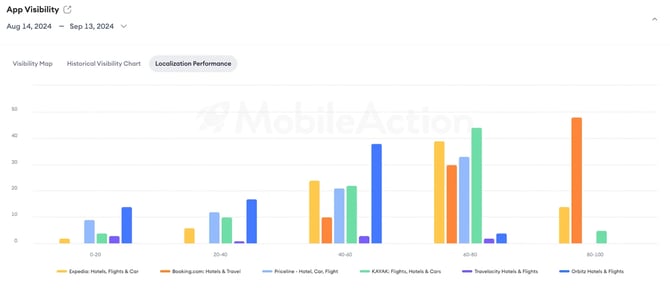
- **Historical Visibility Chart:** Shows visibility changes over a selected time period.
- **Localization Performance:** Helps you evaluate localization-related visibility signals.
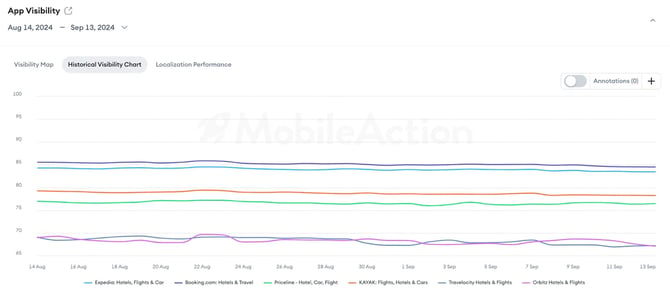
You can hover over the charts to view more details. Use this section to compare how visible each app is across countries or time periods.
### Featuring Analysis
The **Featuring Analysis** section shows how many times your selected app and its competitors were featured over a specific period.
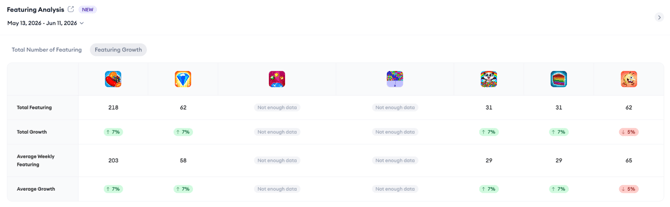
You can use this section to compare featured placement activity across the apps in your competitive set.
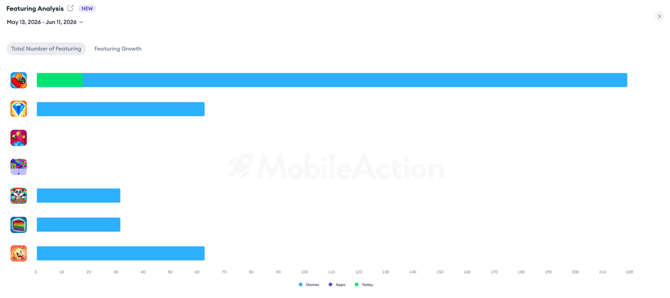
In this section, you can review:
- Total number of features
- Featuring growth
- Differences across selected apps
Use this section when you want to understand whether competitor visibility may be supported by featuring activity.
To review featured placements in more detail and be redirected to the Featured Apps tool, select the navigation icon next to the **Featuring Analysis** section name.
### Ad Intelligence
The **Ad Intelligence** section gives you an overview of paid campaign creatives for your selected app and competitors.
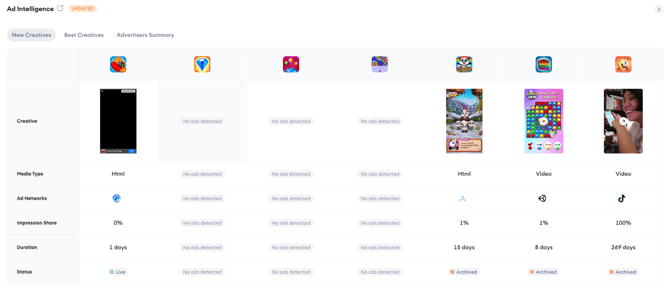
You can use this section to compare competitors' ad creatives and see which types of paid creatives are active or archived.
This section includes three views:
- **New Creatives**
- **Best Creatives**
- **Advertisers Summary**
In this section, you can review:
- The creative itself
- Media type
- Ad networks
- Impression share
- Duration
- Status, such as live or archived
Use this section when you want a quick view of competitor ad activity before opening Ad Intelligence for deeper analysis.
### Metadata
The **Metadata** section shows metadata character counts for your selected app and competitors.
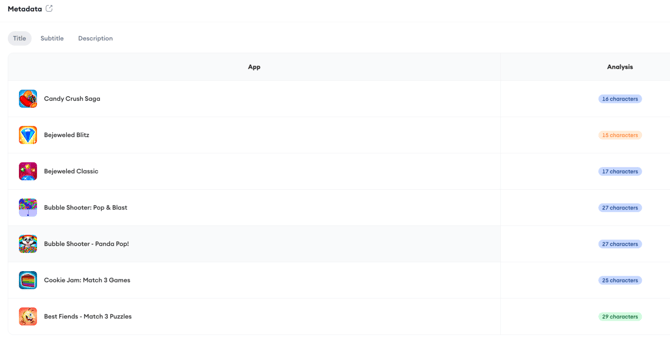
You can use this section to compare how apps use their metadata fields.
This section includes:
- Title
- Subtitle
- Description
Use this section when you want to check metadata length and compare how competitors structure their store listing text.
### App Details
The **App Details** section shows app-level information for your selected app and competitors.
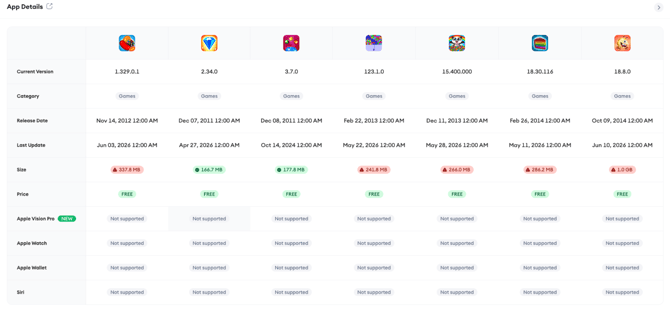
You can use this section to compare basic app information in one table.
This section may include details such as:
- Current version
- Category
- Release date
- Last update
- Size
- Price
- Support for listed Apple devices and features
To open the related App Profile tool, select the navigation icon next to the App Details section name.
### Related links
- [About Compass Explore](https://helpcenter.mobileaction.co/en/about-compass-explore?hsLang=en)
- [Set up an app and competitor comparison in Explore](https://helpcenter.mobileaction.co/en/set-up-an-app-and-competitor-comparison-in-compass-explore?hsLang=en)
- [Navigate from Explore to detailed tools](https://helpcenter.mobileaction.co/en/navigate-from-compass-explore-to-detailed-tools?hsLang=en)
- [Download and share a Compass Explore PDF report](https://helpcenter.mobileaction.co/en/download-and-share-a-compass-explore-pdf-report?hsLang=en)
---
### Need more help?
If you have questions about Explore sections, contact your Customer Success Manager or reach the support team through live chat.
- [Quick Guide to MobileAction](https://helpcenter.mobileaction.co/en/quick-guide-to-mobileaction?hsLang=en)
- [MobileAction CMP](https://helpcenter.mobileaction.co/en/mobileaction-cmp?hsLang=en#main-content)
- [Apple Ads Integration](https://helpcenter.mobileaction.co/en/mobileaction-cmp?hsLang=en#apple-ads-integration)
- [AI Assistant](https://helpcenter.mobileaction.co/en/mobileaction-cmp?hsLang=en#ai-assistant)
- [Overview](https://helpcenter.mobileaction.co/en/mobileaction-cmp?hsLang=en#overview)
- [Ads Manager](https://helpcenter.mobileaction.co/en/mobileaction-cmp?hsLang=en#ads-manager)
- [Automations](https://helpcenter.mobileaction.co/en/mobileaction-cmp?hsLang=en#automations)
- [CPP A/B Testing](https://helpcenter.mobileaction.co/en/mobileaction-cmp?hsLang=en#cpp-a-b-testing)
- [AI Keyword Planner](https://helpcenter.mobileaction.co/en/mobileaction-cmp?hsLang=en#ai-keyword-planner)
- [AI Smart Bidding](https://helpcenter.mobileaction.co/en/mobileaction-cmp?hsLang=en#ai-smart-bidding)
- [Budget Allocation](https://helpcenter.mobileaction.co/en/mobileaction-cmp?hsLang=en#budget-allocation)
- [Benchmarks](https://helpcenter.mobileaction.co/en/mobileaction-cmp?hsLang=en#benchmarks)
- [Market Finder](https://helpcenter.mobileaction.co/en/mobileaction-cmp?hsLang=en#market-finder)
- [App Performance](https://helpcenter.mobileaction.co/en/mobileaction-cmp?hsLang=en#app-performance)
- [MMP Integration](https://helpcenter.mobileaction.co/en/mobileaction-cmp?hsLang=en#mmp-integration)
- [ASO Intelligence](https://helpcenter.mobileaction.co/en/aso-intelligence?hsLang=en#main-content)
- [Metadata Optimizer](https://helpcenter.mobileaction.co/en/aso-intelligence?hsLang=en#metadata-optimizer)
- [App Update Timeline](https://helpcenter.mobileaction.co/en/aso-intelligence?hsLang=en#app-update-timeline)
- [Creative Monitoring](https://helpcenter.mobileaction.co/en/aso-intelligence?hsLang=en#creative-monitoring)
- [Localization](https://helpcenter.mobileaction.co/en/aso-intelligence?hsLang=en#localization)
- [Keyword Tracking](https://helpcenter.mobileaction.co/en/aso-intelligence?hsLang=en#keyword-tracking)
- [Competitor Keywords](https://helpcenter.mobileaction.co/en/aso-intelligence?hsLang=en#competitor-keywords)
- [Keyword Inspector](https://helpcenter.mobileaction.co/en/aso-intelligence?hsLang=en#keyword-inspector)
- [Keyword Trends](https://helpcenter.mobileaction.co/en/aso-intelligence?hsLang=en#keyword-trends)
- [Keyword Translator](https://helpcenter.mobileaction.co/en/aso-intelligence?hsLang=en#keyword-translator)
- [Organic CPP Results](https://helpcenter.mobileaction.co/en/aso-intelligence?hsLang=en#organic-cpp-results)
- [ASO Report](https://helpcenter.mobileaction.co/en/aso-intelligence?hsLang=en#aso-report)
- [Visibility Report](https://helpcenter.mobileaction.co/en/aso-intelligence?hsLang=en#visibility-report)
- [Download Share](https://helpcenter.mobileaction.co/en/aso-intelligence?hsLang=en#download-share)
- [Store Analytics](https://helpcenter.mobileaction.co/en/store-analytics?hsLang=en#main-content)
- [Revenue Snapshot](https://helpcenter.mobileaction.co/en/store-analytics?hsLang=en#revenue-snapshot)
- [Organic Acquisition Dashboard](https://helpcenter.mobileaction.co/en/store-analytics?hsLang=en#organic-acquisition-dashboard)
- [Download Report](https://helpcenter.mobileaction.co/en/store-analytics?hsLang=en#download-report)
- [Conversion Funnel View](https://helpcenter.mobileaction.co/en/store-analytics?hsLang=en#conversion-funnel-view)
- [Analytics Overview](https://helpcenter.mobileaction.co/en/store-analytics?hsLang=en#analytics-overview)
- [Search Ads Intelligence](https://helpcenter.mobileaction.co/en/search-ads-intelligence?hsLang=en#main-content)
- [Search Result/App](https://helpcenter.mobileaction.co/en/search-ads-intelligence?hsLang=en#search-result-app)
- [Search Result/Keyword](https://helpcenter.mobileaction.co/en/search-ads-intelligence?hsLang=en#search-result-keyword)
- [Search Result/Competitor](https://helpcenter.mobileaction.co/en/search-ads-intelligence?hsLang=en#search-result-competitor)
- [Today Tab](https://helpcenter.mobileaction.co/en/search-ads-intelligence?hsLang=en#today-tab)
- [Search Tab](https://helpcenter.mobileaction.co/en/search-ads-intelligence?hsLang=en#search-tab)
- [Product Pages](https://helpcenter.mobileaction.co/en/search-ads-intelligence?hsLang=en#product-pages)
- [Top Advertisers](https://helpcenter.mobileaction.co/en/search-ads-intelligence?hsLang=en#top-advertisers)
- [CPP by Keyword](https://helpcenter.mobileaction.co/en/search-ads-intelligence?hsLang=en#cpp-by-keyword)
- [CPP by App](https://helpcenter.mobileaction.co/en/search-ads-intelligence?hsLang=en#cpp-by-app)
- [CPP by Category](https://helpcenter.mobileaction.co/en/search-ads-intelligence?hsLang=en#cpp-by-category)
- [CPP on Ad Networks](https://helpcenter.mobileaction.co/en/search-ads-intelligence?hsLang=en#cpp-on-ad-networks)
- [App Intelligence](https://helpcenter.mobileaction.co/en/app-intelligence?hsLang=en#main-content)
- [Compass Explore](https://helpcenter.mobileaction.co/en/app-intelligence?hsLang=en#compass-explore)
- [Compass Trace](https://helpcenter.mobileaction.co/en/app-intelligence?hsLang=en#compass-trace)
- [Compass Impact](https://helpcenter.mobileaction.co/en/app-intelligence?hsLang=en#compass-impact)
- [App Profile](https://helpcenter.mobileaction.co/en/app-intelligence?hsLang=en#app-profile)
- [Publisher Profile](https://helpcenter.mobileaction.co/en/app-intelligence?hsLang=en#publisher-profile)
- [Featured Apps](https://helpcenter.mobileaction.co/en/app-intelligence?hsLang=en#featured-apps)
- [Category Rankings](https://helpcenter.mobileaction.co/en/app-intelligence?hsLang=en#category-rankings)
- [Reviews](https://helpcenter.mobileaction.co/en/app-intelligence?hsLang=en#reviews)
- [AI Review Reply](https://helpcenter.mobileaction.co/en/app-intelligence?hsLang=en#ai-review-reply)
- [Ratings](https://helpcenter.mobileaction.co/en/app-intelligence?hsLang=en#ratings)
- [Similar Apps](https://helpcenter.mobileaction.co/en/app-intelligence?hsLang=en#similar-apps)
- [In-App Events](https://helpcenter.mobileaction.co/en/app-intelligence?hsLang=en#in-app-events)
- [Promotional Content](https://helpcenter.mobileaction.co/en/app-intelligence?hsLang=en#promotional-content)
- [Top Charts](https://helpcenter.mobileaction.co/en/app-intelligence?hsLang=en#top-charts)
- [Biggest Movers](https://helpcenter.mobileaction.co/en/app-intelligence?hsLang=en#biggest-movers)
- [Biggest Losers](https://helpcenter.mobileaction.co/en/app-intelligence?hsLang=en#biggest-losers)
- [Ad Intelligence](https://helpcenter.mobileaction.co/en/ad-intelligence?hsLang=en#main-content)
- [Creative Analysis](https://helpcenter.mobileaction.co/en/ad-intelligence?hsLang=en#creative-analysis)
- [Advertiser Analysis](https://helpcenter.mobileaction.co/en/ad-intelligence?hsLang=en#advertiser-analysis)
- [Ad Publisher Analysis](https://helpcenter.mobileaction.co/en/ad-intelligence?hsLang=en#ad-publisher-analysis)
- [Developer Analysis](https://helpcenter.mobileaction.co/en/ad-intelligence?hsLang=en#developer-analysis)
- [Top Advertisers](https://helpcenter.mobileaction.co/en/ad-intelligence?hsLang=en#top-advertisers)
- [Top Ad Publishers](https://helpcenter.mobileaction.co/en/ad-intelligence?hsLang=en#top-ad-publishers)
- [Top Creatives](https://helpcenter.mobileaction.co/en/ad-intelligence?hsLang=en#top-creatives)
- [Top Developers](https://helpcenter.mobileaction.co/en/ad-intelligence?hsLang=en#top-developers)
- [App Collections](https://helpcenter.mobileaction.co/en/ad-intelligence?hsLang=en#app-collections)
- [Creative Collections](https://helpcenter.mobileaction.co/en/ad-intelligence?hsLang=en#creative-collections)
- [Troubleshooting](https://helpcenter.mobileaction.co/en/troubleshooting?hsLang=en#main-content)
- [MobileAction CMP Troubleshooting](https://helpcenter.mobileaction.co/en/troubleshooting?hsLang=en#mobileaction-cmp-troubleshooting)
- [ASO Intelligence Troubleshooting](https://helpcenter.mobileaction.co/en/troubleshooting?hsLang=en#aso-intelligence-troubleshooting)
- [Search Ads Intelligence Troubleshooting](https://helpcenter.mobileaction.co/en/troubleshooting?hsLang=en#search-ads-intelligence-troubleshooting)
- [Integrations](https://helpcenter.mobileaction.co/en/integrations?hsLang=en#main-content)
- [MobileAction Integrations](https://helpcenter.mobileaction.co/en/integrations?hsLang=en#mobileaction-integrations)
- [SearchAds.com Integrations](https://helpcenter.mobileaction.co/en/integrations?hsLang=en#searchads-com-integrations)
- [SSO Configuration](https://helpcenter.mobileaction.co/en/integrations?hsLang=en#sso-configuration)
- [Settings](https://helpcenter.mobileaction.co/en/settings?hsLang=en#main-content)
- [MobileAction Settings](https://helpcenter.mobileaction.co/en/settings?hsLang=en#mobileaction-settings)
- [SearchAds.com Settings](https://helpcenter.mobileaction.co/en/settings?hsLang=en#searchads-com-settings)
- [Single Sign-On Configuration Guides](https://helpcenter.mobileaction.co/en/settings?hsLang=en#single-sign-on-configuration-guides)
[](https://www.mobileaction.co)
Build app store marketing on AI, automation and expertise
Copyright © 2025, MobileAction