
This article shows you how to open an AI Smart Bidding setup’s performance view and logs, so you can understand how results are trending and what changed over time.
Before you begin
- Go to MobileAction CMP > AI Smart Bidding and locate the setup you want to review.
- If you need help finding a setup, see How to manage AI Smart Bidding setups.
Instructions
Open the detailed view
- In the AI Smart Bidding table, find the setup you want to review.
- Click the expand icon on the right side of the row.
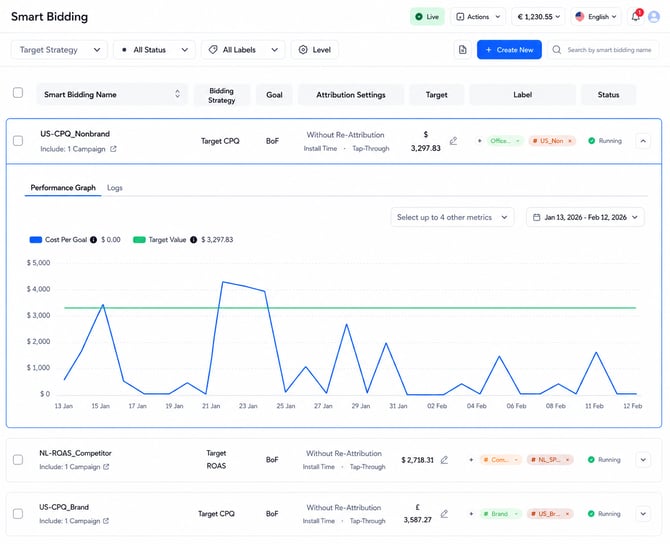
- Review the detailed section that opens below the setup.
This view helps you check how AI Smart Bidding is performing, especially after you update a target value, change bid limits, pause or run a setup, or restart optimization.
Pro tip: If performance looks different than expected, check the Logs tab before making another change. Logs help you see what was updated and when, so you do not react too quickly to a recent adjustment.
Review the performance graph
The Performance Graph shows how the selected AI Smart Bidding setup is performing compared to its target and related metrics.
The graph may vary depending on the target strategy you selected.
For example:
- For Target CPA, you can review actual average CPA against the target CPA value.
- For Target CPI, you can review install cost performance against the target CPI value.
- For Target CPG, you can review goal cost performance against the selected goal target.
- For Target ROAS, you can review ROAS performance based on the selected ROAS window, such as D1, D7, D14, D30, or D60.
- For Target Impression Share, you can review impression share performance against the selected daily Impression Share (First Ad Position) target or range.
You can adjust the date range to understand whether performance is trending above, below, or aligned with your target.
Review additional metrics
Depending on the setup and selected strategy, you can also review other related metric lines on the graph.
Use these metrics to understand the wider context behind performance changes. For example, a setup may be close to its target, but impressions, spend, installs, goals, or revenue may still be changing during the selected period.
Review the logs
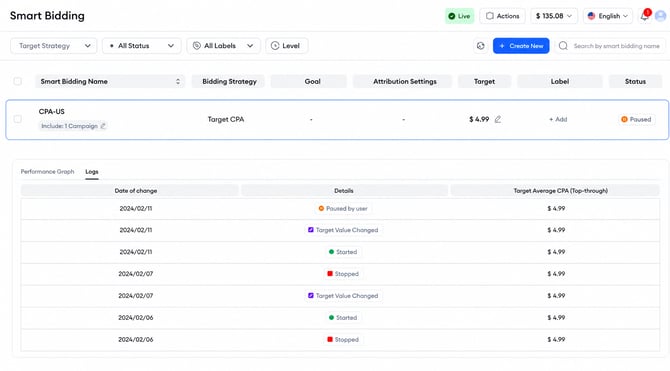
The Logs tab provides a record of AI Smart Bidding actions and setup changes.
Use logs to understand what changed before, during, or after a performance shift.
Logs may include updates such as:
- Target value adjustments
- Bid limit changes
- Status changes, such as Run, Pause, or Stop
- Setup updates shown in the current AI Smart Bidding flow
Use logs before making new changes
Before updating a target value or changing setup settings, review the latest logs.
This is especially helpful when:
- A setup was recently paused or run again
- A target value was recently changed
- Bid limits were added or updated
- Performance changed after a setup update
- ROAS performance is still developing over a longer window, such as D30 or D60
For longer ROAS windows, keep in mind that users may take more time to show their full revenue value. Avoid judging D30 or D60 performance too early.
Related links
- About AI Smart Bidding
- How to create an AI Smart Bidding setup
- How to manage AI Smart Bidding setups
- AI Smart Bidding best practices and FAQs
Need more help?
If you have further questions on the process, contact your dedicated Customer Success Manager or contact the support team via live chat.