---
title: How to manage AI Smart Bidding setups
description: This article shows you how to review, filter, edit, export, and control AI Smart Bidding setups from the AI Smart Bidding table.
---
[Skip to content](https://helpcenter.mobileaction.co/en/how-to-manage-ai-smart-bidding-setups#main-content)
[](https://www.mobileaction.co/)
- [Website](https://www.mobileaction.co/)
- [Help Center](https://helpcenter.mobileaction.co/en)
Open main navigation
Close main navigation
- [Website](https://www.mobileaction.co/)
- [Help Center](https://helpcenter.mobileaction.co/en)
Advice and answers from the MobileAction Team
- There are no suggestions because the search field is empty.
1. [Help Center](https://helpcenter.mobileaction.co/en?hsLang=en)
2. [MobileAction CMP](https://helpcenter.mobileaction.co/en/mobileaction-cmp?hsLang=en)
3. [AI Smart Bidding](https://helpcenter.mobileaction.co/en/mobileaction-cmp?hsLang=en#ai-smart-bidding)
# How to manage AI Smart Bidding setups
This article shows you how to review, filter, edit, export, and control AI Smart Bidding setups from the AI Smart Bidding table.
### Before you begin
- To use AI Smart Bidding, you need access to AI Smart Bidding in your plan.
- AI Smart Bidding can only be applied to campaigns and ad groups running **search results ads**.
- For details, see[About AI Smart Bidding](https://helpcenter.mobileaction.co/en/about-ai-smart-bidding?hsLang=en).
### Instructions
#### Open the AI Smart Bidding table
1. Go to **MobileAction CMP \> AI Smart Bidding**.
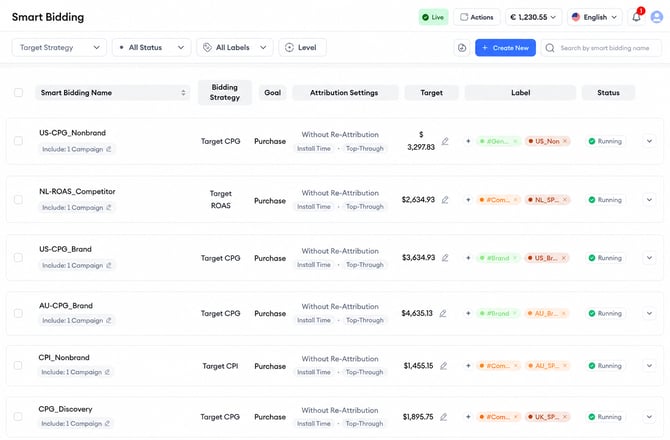
2. Review the table that lists all AI Smart Bidding setups in one view.
From the table, you can see each setup’s:
- AI Smart Bidding name
- Bidding strategy
- Goal
- Attribution settings
- Target
- Label
- Status
#### Filter AI Smart Bidding setups
Use the filters at the top of the table to focus on the setups you want to review or manage.
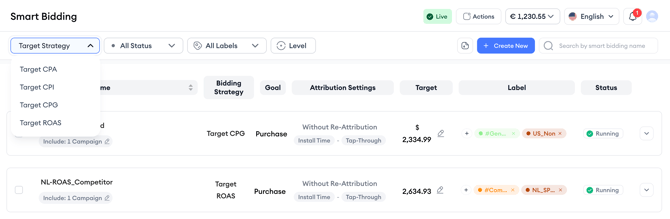
You can filter setups by:
- **Target Strategy**
- **Status**
- **Labels**
- **Level**
You can also use the search bar to search by **AI Smart Bidding name**.
#### Filter by target strategy
Use the **Target Strategy** filter to focus on a specific optimization strategy.
Available options include:
- **Target CPA**
- **Target CPI**
- **Target CPG**
- **Target ROAS**
- **Target Impression Share**
#### Filter by status
Use the **Status** filter to review setups based on their current state.
Available status options include:
- **Running**
- **Paused**
- **Stopped**
Select one or more statuses, then click **Apply**.
#### Filter by labels
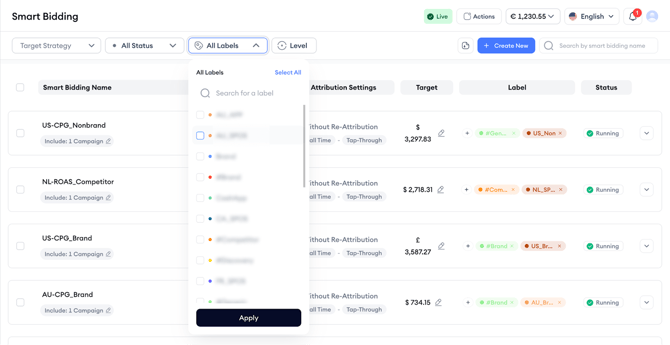
Use the **Labels** filter to review setups based on your own structure, such as brand, competitor, market, or campaign grouping.
You can search for a label, select one or more labels, and click **Apply** to filter the table.
#### Filter by level
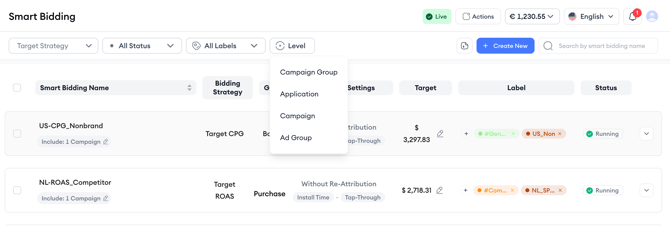
Use the **Level** filter to find setups based on where AI Smart Bidding is applied.
Available level options include:
- **Campaign Group**
- **Application**
- **Campaign**
- **Ad Group**
#### Export AI Smart Bidding data
To export the full AI Smart Bidding table data:
1. Click **Export Smart Bidding Data** at the top of the page.
2. Download the exported file.
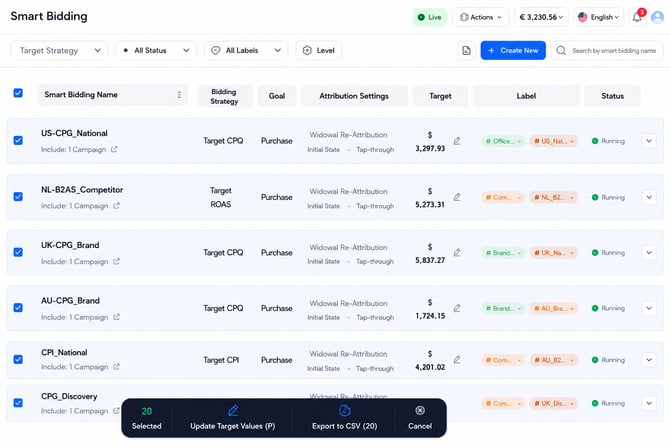Update target values or export selected setups
Each row includes a checkbox so you can select one or more setups.
After selecting setups, an action bar appears at the bottom of the page. From this action bar, you can:
- **Update Target Values** for the selected setup or setups
- **Export to CSV** for only the selected setup or setups
- **Cancel** to clear your selection
**Pro tip:** Use filters first, then multi-select. For example, filter by **Target Strategy = Target CPA** and **Status = Running**, then select only the setups you want to update.
**Keep in mind!**
Bulk actions support target value updates and CSV export. Status controls are managed per setup from the table.
#### Edit an existing setup
You can edit available setup details directly from the AI Smart Bidding table.
Depending on the setup, editable fields may include:
- AI Smart Bidding name
- Target value
- Selected campaign or ad group details, where available
- Labels
**Keep in mind!**
The bidding strategy and applied level cannot be changed after creation. Choose the right strategy and level carefully when creating a new setup.
### Manage keyword-level AI Smart Bidding settings from Ads Manager
Some AI Smart Bidding keyword-level settings are managed from **Ads Manager**, not from the main AI Smart Bidding table.
To access these settings, go to **Ads Manager \> Keywords**, select the keywords you want to update, open **Actions**, and choose **AI Smart Bidding Settings**.
From this menu, you can: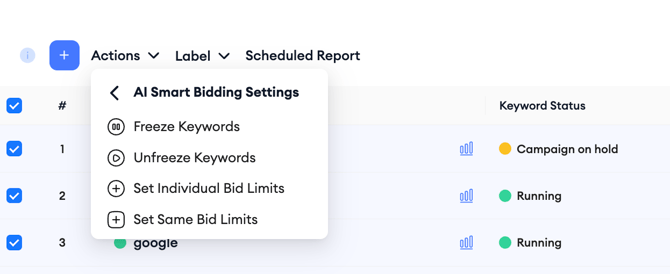
- **Freeze Keywords:** Stops AI Smart Bidding from making adjustments, including bid changes, for the selected keywords.
- **Unfreeze Keywords:** Allows AI Smart Bidding to resume making adjustments for the selected keywords.
- **Set Individual Bid Limits:** Lets you set different minimum and/or maximum bid limits for selected keywords.
- **Set Same Bid Limits:** Lets you apply the same minimum and/or maximum bid limits to selected keywords in bulk.
**Keep in mind!**
These are keyword-level AI Smart Bidding settings accessed from Ads Manager. They are different from setup status controls such as **Run**, **Pause**, and **Stop**, which are managed from the AI Smart Bidding table.
#### Control setup status
You can control an AI Smart Bidding setup’s status from the table.
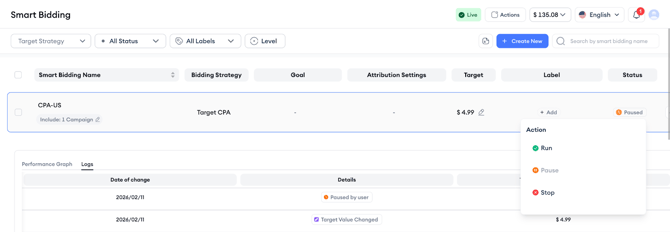
Available status controls include:
- **Pause** to temporarily stop AI Smart Bidding while keeping the setup.
- **Run** to reactivate a paused setup.
- **Stop** to end the setup and reset its progress.
When you run, pause, or stop a setup, the platform shows a confirmation message before applying the change.
### Related links
- [About AI Smart Bidding](https://helpcenter.mobileaction.co/en/about-ai-smart-bidding?hsLang=en)
- [How to create an AI Smart Bidding setup](https://helpcenter.mobileaction.co/en/how-to-create-a-ai-smart-bidding-setup?hsLang=en)
- [How to review AI Smart Bidding logs and performance](https://helpcenter.mobileaction.co/en/how-to-review-ai-smart-bidding-logs-and-performance?hsLang=en)
- [AI Smart Bidding best practices and FAQs](https://helpcenter.mobileaction.co/en/ai-smart-bidding-best-practices-and-faqs?hsLang=en)
---
### Need more help?
If you have further questions on the process, contact your dedicated Customer Success Manager or contact the support team via live chat.
- [Quick Guide to MobileAction](https://helpcenter.mobileaction.co/en/quick-guide-to-mobileaction?hsLang=en)
- [MobileAction CMP](https://helpcenter.mobileaction.co/en/mobileaction-cmp?hsLang=en#main-content)
- [Apple Ads Integration](https://helpcenter.mobileaction.co/en/mobileaction-cmp?hsLang=en#apple-ads-integration)
- [AI Assistant](https://helpcenter.mobileaction.co/en/mobileaction-cmp?hsLang=en#ai-assistant)
- [Overview](https://helpcenter.mobileaction.co/en/mobileaction-cmp?hsLang=en#overview)
- [Ads Manager](https://helpcenter.mobileaction.co/en/mobileaction-cmp?hsLang=en#ads-manager)
- [Automations](https://helpcenter.mobileaction.co/en/mobileaction-cmp?hsLang=en#automations)
- [CPP A/B Testing](https://helpcenter.mobileaction.co/en/mobileaction-cmp?hsLang=en#cpp-a-b-testing)
- [AI Keyword Planner](https://helpcenter.mobileaction.co/en/mobileaction-cmp?hsLang=en#ai-keyword-planner)
- [AI Smart Bidding](https://helpcenter.mobileaction.co/en/mobileaction-cmp?hsLang=en#ai-smart-bidding)
- [Budget Allocation](https://helpcenter.mobileaction.co/en/mobileaction-cmp?hsLang=en#budget-allocation)
- [Benchmarks](https://helpcenter.mobileaction.co/en/mobileaction-cmp?hsLang=en#benchmarks)
- [Market Finder](https://helpcenter.mobileaction.co/en/mobileaction-cmp?hsLang=en#market-finder)
- [App Performance](https://helpcenter.mobileaction.co/en/mobileaction-cmp?hsLang=en#app-performance)
- [MMP Integration](https://helpcenter.mobileaction.co/en/mobileaction-cmp?hsLang=en#mmp-integration)
- [ASO Intelligence](https://helpcenter.mobileaction.co/en/aso-intelligence?hsLang=en#main-content)
- [Metadata Optimizer](https://helpcenter.mobileaction.co/en/aso-intelligence?hsLang=en#metadata-optimizer)
- [App Update Timeline](https://helpcenter.mobileaction.co/en/aso-intelligence?hsLang=en#app-update-timeline)
- [Creative Monitoring](https://helpcenter.mobileaction.co/en/aso-intelligence?hsLang=en#creative-monitoring)
- [Localization](https://helpcenter.mobileaction.co/en/aso-intelligence?hsLang=en#localization)
- [Keyword Tracking](https://helpcenter.mobileaction.co/en/aso-intelligence?hsLang=en#keyword-tracking)
- [Competitor Keywords](https://helpcenter.mobileaction.co/en/aso-intelligence?hsLang=en#competitor-keywords)
- [Keyword Inspector](https://helpcenter.mobileaction.co/en/aso-intelligence?hsLang=en#keyword-inspector)
- [Keyword Trends](https://helpcenter.mobileaction.co/en/aso-intelligence?hsLang=en#keyword-trends)
- [Keyword Translator](https://helpcenter.mobileaction.co/en/aso-intelligence?hsLang=en#keyword-translator)
- [Organic CPP Results](https://helpcenter.mobileaction.co/en/aso-intelligence?hsLang=en#organic-cpp-results)
- [ASO Report](https://helpcenter.mobileaction.co/en/aso-intelligence?hsLang=en#aso-report)
- [Visibility Report](https://helpcenter.mobileaction.co/en/aso-intelligence?hsLang=en#visibility-report)
- [Download Share](https://helpcenter.mobileaction.co/en/aso-intelligence?hsLang=en#download-share)
- [Store Analytics](https://helpcenter.mobileaction.co/en/store-analytics?hsLang=en#main-content)
- [Revenue Snapshot](https://helpcenter.mobileaction.co/en/store-analytics?hsLang=en#revenue-snapshot)
- [Organic Acquisition Dashboard](https://helpcenter.mobileaction.co/en/store-analytics?hsLang=en#organic-acquisition-dashboard)
- [Download Report](https://helpcenter.mobileaction.co/en/store-analytics?hsLang=en#download-report)
- [Conversion Funnel View](https://helpcenter.mobileaction.co/en/store-analytics?hsLang=en#conversion-funnel-view)
- [Analytics Overview](https://helpcenter.mobileaction.co/en/store-analytics?hsLang=en#analytics-overview)
- [Search Ads Intelligence](https://helpcenter.mobileaction.co/en/search-ads-intelligence?hsLang=en#main-content)
- [Search Result/App](https://helpcenter.mobileaction.co/en/search-ads-intelligence?hsLang=en#search-result-app)
- [Search Result/Keyword](https://helpcenter.mobileaction.co/en/search-ads-intelligence?hsLang=en#search-result-keyword)
- [Search Result/Competitor](https://helpcenter.mobileaction.co/en/search-ads-intelligence?hsLang=en#search-result-competitor)
- [Today Tab](https://helpcenter.mobileaction.co/en/search-ads-intelligence?hsLang=en#today-tab)
- [Search Tab](https://helpcenter.mobileaction.co/en/search-ads-intelligence?hsLang=en#search-tab)
- [Product Pages](https://helpcenter.mobileaction.co/en/search-ads-intelligence?hsLang=en#product-pages)
- [Top Advertisers](https://helpcenter.mobileaction.co/en/search-ads-intelligence?hsLang=en#top-advertisers)
- [CPP by Keyword](https://helpcenter.mobileaction.co/en/search-ads-intelligence?hsLang=en#cpp-by-keyword)
- [CPP by App](https://helpcenter.mobileaction.co/en/search-ads-intelligence?hsLang=en#cpp-by-app)
- [CPP by Category](https://helpcenter.mobileaction.co/en/search-ads-intelligence?hsLang=en#cpp-by-category)
- [CPP on Ad Networks](https://helpcenter.mobileaction.co/en/search-ads-intelligence?hsLang=en#cpp-on-ad-networks)
- [App Intelligence](https://helpcenter.mobileaction.co/en/app-intelligence?hsLang=en#main-content)
- [Compass Explore](https://helpcenter.mobileaction.co/en/app-intelligence?hsLang=en#compass-explore)
- [Compass Trace](https://helpcenter.mobileaction.co/en/app-intelligence?hsLang=en#compass-trace)
- [Compass Impact](https://helpcenter.mobileaction.co/en/app-intelligence?hsLang=en#compass-impact)
- [App Profile](https://helpcenter.mobileaction.co/en/app-intelligence?hsLang=en#app-profile)
- [Publisher Profile](https://helpcenter.mobileaction.co/en/app-intelligence?hsLang=en#publisher-profile)
- [Featured Apps](https://helpcenter.mobileaction.co/en/app-intelligence?hsLang=en#featured-apps)
- [Category Rankings](https://helpcenter.mobileaction.co/en/app-intelligence?hsLang=en#category-rankings)
- [Reviews](https://helpcenter.mobileaction.co/en/app-intelligence?hsLang=en#reviews)
- [AI Review Reply](https://helpcenter.mobileaction.co/en/app-intelligence?hsLang=en#ai-review-reply)
- [Ratings](https://helpcenter.mobileaction.co/en/app-intelligence?hsLang=en#ratings)
- [Similar Apps](https://helpcenter.mobileaction.co/en/app-intelligence?hsLang=en#similar-apps)
- [In-App Events](https://helpcenter.mobileaction.co/en/app-intelligence?hsLang=en#in-app-events)
- [Promotional Content](https://helpcenter.mobileaction.co/en/app-intelligence?hsLang=en#promotional-content)
- [Top Charts](https://helpcenter.mobileaction.co/en/app-intelligence?hsLang=en#top-charts)
- [Biggest Movers](https://helpcenter.mobileaction.co/en/app-intelligence?hsLang=en#biggest-movers)
- [Biggest Losers](https://helpcenter.mobileaction.co/en/app-intelligence?hsLang=en#biggest-losers)
- [Ad Intelligence](https://helpcenter.mobileaction.co/en/ad-intelligence?hsLang=en#main-content)
- [Creative Analysis](https://helpcenter.mobileaction.co/en/ad-intelligence?hsLang=en#creative-analysis)
- [Advertiser Analysis](https://helpcenter.mobileaction.co/en/ad-intelligence?hsLang=en#advertiser-analysis)
- [Ad Publisher Analysis](https://helpcenter.mobileaction.co/en/ad-intelligence?hsLang=en#ad-publisher-analysis)
- [Developer Analysis](https://helpcenter.mobileaction.co/en/ad-intelligence?hsLang=en#developer-analysis)
- [Top Advertisers](https://helpcenter.mobileaction.co/en/ad-intelligence?hsLang=en#top-advertisers)
- [Top Ad Publishers](https://helpcenter.mobileaction.co/en/ad-intelligence?hsLang=en#top-ad-publishers)
- [Top Creatives](https://helpcenter.mobileaction.co/en/ad-intelligence?hsLang=en#top-creatives)
- [Top Developers](https://helpcenter.mobileaction.co/en/ad-intelligence?hsLang=en#top-developers)
- [App Collections](https://helpcenter.mobileaction.co/en/ad-intelligence?hsLang=en#app-collections)
- [Creative Collections](https://helpcenter.mobileaction.co/en/ad-intelligence?hsLang=en#creative-collections)
- [Troubleshooting](https://helpcenter.mobileaction.co/en/troubleshooting?hsLang=en#main-content)
- [MobileAction CMP Troubleshooting](https://helpcenter.mobileaction.co/en/troubleshooting?hsLang=en#mobileaction-cmp-troubleshooting)
- [ASO Intelligence Troubleshooting](https://helpcenter.mobileaction.co/en/troubleshooting?hsLang=en#aso-intelligence-troubleshooting)
- [Search Ads Intelligence Troubleshooting](https://helpcenter.mobileaction.co/en/troubleshooting?hsLang=en#search-ads-intelligence-troubleshooting)
- [Integrations](https://helpcenter.mobileaction.co/en/integrations?hsLang=en#main-content)
- [MobileAction Integrations](https://helpcenter.mobileaction.co/en/integrations?hsLang=en#mobileaction-integrations)
- [SearchAds.com Integrations](https://helpcenter.mobileaction.co/en/integrations?hsLang=en#searchads-com-integrations)
- [SSO Configuration](https://helpcenter.mobileaction.co/en/integrations?hsLang=en#sso-configuration)
- [Settings](https://helpcenter.mobileaction.co/en/settings?hsLang=en#main-content)
- [MobileAction Settings](https://helpcenter.mobileaction.co/en/settings?hsLang=en#mobileaction-settings)
- [SearchAds.com Settings](https://helpcenter.mobileaction.co/en/settings?hsLang=en#searchads-com-settings)
- [Single Sign-On Configuration Guides](https://helpcenter.mobileaction.co/en/settings?hsLang=en#single-sign-on-configuration-guides)
[](https://www.mobileaction.co)
Build app store marketing on AI, automation and expertise
Copyright © 2025, MobileAction