---
title: Edit your campaigns in Ads Manager
description: This article covers each editing method available at the campaign and ad group levels.
---
[Skip to content](https://helpcenter.mobileaction.co/en/edit-your-campaigns-in-ads-manager#main-content)
[](https://www.mobileaction.co/)
- [Website](https://www.mobileaction.co/)
- [Help Center](https://helpcenter.mobileaction.co/en)
Open main navigation
Close main navigation
- [Website](https://www.mobileaction.co/)
- [Help Center](https://helpcenter.mobileaction.co/en)
Advice and answers from the MobileAction Team
- There are no suggestions because the search field is empty.
1. [Help Center](https://helpcenter.mobileaction.co/en?hsLang=en)
2. [MobileAction CMP](https://helpcenter.mobileaction.co/en/mobileaction-cmp?hsLang=en)
3. [Ads Manager](https://helpcenter.mobileaction.co/en/mobileaction-cmp?hsLang=en#ads-manager)
# Edit your campaigns in Ads Manager
Ads Manager gives you several ways to update your Apple Ads campaigns and ad groups without leaving the platform. You can edit individual items through the edit wizard, update budgets and Target CPA (for Max. Conversion campaigns) directly in the table, or apply changes across multiple items using Quick Edit and the Actions menu.
This article covers each editing method available at the campaign and ad group levels.
If you need to make the same change across multiple rows at once, see [Use Quick Edit in Ads Manager](https://helpcenter.mobileaction.co/en/use-quick-edit-in-ads-manager?hsLang=en) or [Use bulk actions in Ads Manager](https://helpcenter.mobileaction.co/en/use-bulk-actions-in-ads-manager?hsLang=en).
### Edit a campaign
Open Ads Manager and select the **Campaigns** tab. Your campaigns are listed in the table below the graph.
Hover over a campaign name to reveal three options beneath it: **Edit**, **Duplicate**, and **New Tab**. Select **Edit** to open the **Campaign Edit Wizard**.
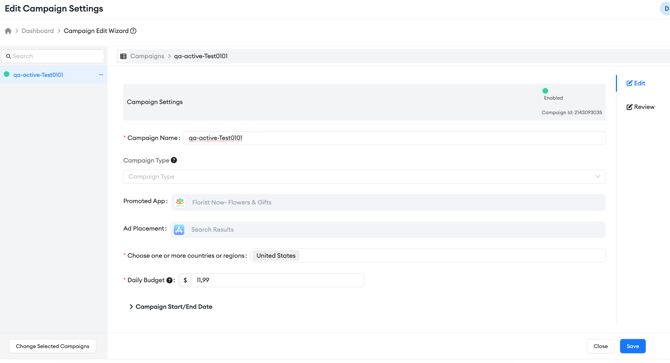
Inside the wizard, you can update the following fields:
**Campaign Name**: Rename the campaign. Changes here are reflected immediately in the Campaigns table.
**Campaign Type**: Update the optional strategy label assigned to the campaign, such as Brand, Generic, or Competitor.
**Countries or Regions**: Add or remove storefronts the campaign targets.
**Daily Budget**: Update the daily spend limit for the campaign.
**Campaign Start/End Date**: Adjust the campaign's start or end date. The start date can only be changed if the campaign has not yet begun.
**Keep in mind!**
Promoted App and Ad Placement are shown in the wizard for reference but cannot be changed after a campaign is created.
Once you have made your changes, select **Review** to see a summary of what will be updated, then select **Save** to apply them.
### Edit a campaign's daily budget inline
If you only need to adjust a campaign's daily budget, you do not need to open the full edit wizard. In the Campaigns table, locate the **Daily Budget** column and click the pen icon that appears next to the budget value when you hover over it.
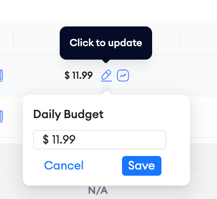
A small inline editor opens showing the current budget. Enter the new amount and select **Save**. If the campaign is under Budget Allocation, a note will appear indicating this before you confirm the change.
This is the fastest way to update a single campaign's budget without going through the full edit flow.
### Review budget history
To see how a campaign's daily budget has changed over time, click the graph icon next to the budget value in the Daily Budget column.
-png.png?width=670&height=419&name=searchads-mobileaction-co_dashboard_campaigns%20(4)-png.png)
This button opens the **Daily Budget History** view, which shows a timeline of budget changes along with the source of each change, for example, whether it was set manually or adjusted by Budget Allocation, and the exact timestamp of each update.
### Edit Target CPA inline for Maximize Conversions campaigns
For campaigns that use Maximize Conversions, Target CPA is the average cost per acquisition you want the campaign to reach. You can update it directly from the Campaigns table without opening the edit wizard. Locate the **Target CPA** column and click the pen icon next to the Target CPA value.
An inline editor opens showing the current Target CPA. Enter the new amount and select **Save**. The updated value appears in the Campaigns table.
Before the change is saved, Ads Manager checks the amount you entered. Target CPA must be greater than zero, and it cannot be greater than the campaign’s daily budget. If the amount does not meet these rules, the change is not saved, and an error message appears under the Target CPA field. For example, an amount above the daily budget shows the message “Target CPA cannot be greater than daily budget.” Correct the amount and select **Save** again.
### Edit an ad group
Open Ads Manager and select the **Ad Groups** tab. Hover over an ad group name to reveal the **Edit** option beneath it. Select it to open the Ad Group Edit Wizard.
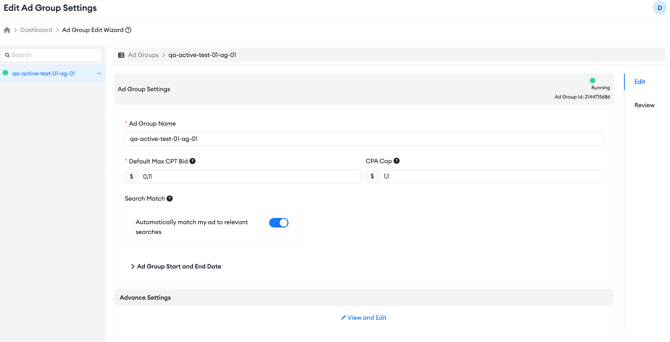
Inside the wizard, you can update the following fields:
**Ad Group Name**: Rename the ad group.
**Default Max CPT Bid**: Update the maximum amount you are willing to pay per tap. This bid applies to all keywords in the ad group unless individual keywords have custom bids set.
**Ad Group Start and End Date**: Click to expand and adjust the schedule.
**Advanced Settings**: Click **View and Edit** to access and update the ad group's demographic and audience targeting configuration, including device, gender, age range, and customer type settings.
Once you have made your changes, select **Save** to apply them.
### Review hourly data
At the Campaign, Ad Group, and Keyword layers, you can switch to an hourly data view to see performance broken down by hour rather than by day.
-png.png?width=670&height=391&name=searchads-mobileaction-co_dashboard_campaigns%20(2)-png.png)
This view covers up to 15 days at a time and is useful for identifying intraday patterns in impressions, taps, or conversions that a daily view would smooth over. Look for the hourly chart icon next to the campaign or ad group name in the table to access this view.
### Related links
- [Use Quick Edit in Ads Manager](https://helpcenter.mobileaction.co/en/use-quick-edit-in-ads-manager?hsLang=en)
- [Use bulk actions in Ads Manager](https://helpcenter.mobileaction.co/en/use-bulk-actions-in-ads-manager?hsLang=en)
- [Add keywords to an ad group](https://helpcenter.mobileaction.co/en/add-keywords-to-an-ad-group?hsLang=en)
- [Ads Manager overview](https://helpcenter.mobileaction.co/en/ads-manager-overview?hsLang=en)
---
### Need more help?
If you have further questions, contact your dedicated Customer Success Manager or reach out via live chat.
- [Quick Guide to MobileAction](https://helpcenter.mobileaction.co/en/quick-guide-to-mobileaction?hsLang=en)
- [MobileAction CMP](https://helpcenter.mobileaction.co/en/mobileaction-cmp?hsLang=en#main-content)
- [Apple Ads Integration](https://helpcenter.mobileaction.co/en/mobileaction-cmp?hsLang=en#apple-ads-integration)
- [AI Assistant](https://helpcenter.mobileaction.co/en/mobileaction-cmp?hsLang=en#ai-assistant)
- [Overview](https://helpcenter.mobileaction.co/en/mobileaction-cmp?hsLang=en#overview)
- [Ads Manager](https://helpcenter.mobileaction.co/en/mobileaction-cmp?hsLang=en#ads-manager)
- [Automations](https://helpcenter.mobileaction.co/en/mobileaction-cmp?hsLang=en#automations)
- [CPP A/B Testing](https://helpcenter.mobileaction.co/en/mobileaction-cmp?hsLang=en#cpp-a-b-testing)
- [AI Keyword Planner](https://helpcenter.mobileaction.co/en/mobileaction-cmp?hsLang=en#ai-keyword-planner)
- [AI Smart Bidding](https://helpcenter.mobileaction.co/en/mobileaction-cmp?hsLang=en#ai-smart-bidding)
- [Budget Allocation](https://helpcenter.mobileaction.co/en/mobileaction-cmp?hsLang=en#budget-allocation)
- [Benchmarks](https://helpcenter.mobileaction.co/en/mobileaction-cmp?hsLang=en#benchmarks)
- [Market Finder](https://helpcenter.mobileaction.co/en/mobileaction-cmp?hsLang=en#market-finder)
- [App Performance](https://helpcenter.mobileaction.co/en/mobileaction-cmp?hsLang=en#app-performance)
- [MMP Integration](https://helpcenter.mobileaction.co/en/mobileaction-cmp?hsLang=en#mmp-integration)
- [ASO Intelligence](https://helpcenter.mobileaction.co/en/aso-intelligence?hsLang=en#main-content)
- [Metadata Optimizer](https://helpcenter.mobileaction.co/en/aso-intelligence?hsLang=en#metadata-optimizer)
- [App Update Timeline](https://helpcenter.mobileaction.co/en/aso-intelligence?hsLang=en#app-update-timeline)
- [Creative Monitoring](https://helpcenter.mobileaction.co/en/aso-intelligence?hsLang=en#creative-monitoring)
- [Localization](https://helpcenter.mobileaction.co/en/aso-intelligence?hsLang=en#localization)
- [Keyword Tracking](https://helpcenter.mobileaction.co/en/aso-intelligence?hsLang=en#keyword-tracking)
- [Competitor Keywords](https://helpcenter.mobileaction.co/en/aso-intelligence?hsLang=en#competitor-keywords)
- [Keyword Inspector](https://helpcenter.mobileaction.co/en/aso-intelligence?hsLang=en#keyword-inspector)
- [Keyword Trends](https://helpcenter.mobileaction.co/en/aso-intelligence?hsLang=en#keyword-trends)
- [Keyword Translator](https://helpcenter.mobileaction.co/en/aso-intelligence?hsLang=en#keyword-translator)
- [Organic CPP Results](https://helpcenter.mobileaction.co/en/aso-intelligence?hsLang=en#organic-cpp-results)
- [ASO Report](https://helpcenter.mobileaction.co/en/aso-intelligence?hsLang=en#aso-report)
- [Visibility Report](https://helpcenter.mobileaction.co/en/aso-intelligence?hsLang=en#visibility-report)
- [Download Share](https://helpcenter.mobileaction.co/en/aso-intelligence?hsLang=en#download-share)
- [Store Analytics](https://helpcenter.mobileaction.co/en/store-analytics?hsLang=en#main-content)
- [Revenue Snapshot](https://helpcenter.mobileaction.co/en/store-analytics?hsLang=en#revenue-snapshot)
- [Organic Acquisition Dashboard](https://helpcenter.mobileaction.co/en/store-analytics?hsLang=en#organic-acquisition-dashboard)
- [Download Report](https://helpcenter.mobileaction.co/en/store-analytics?hsLang=en#download-report)
- [Conversion Funnel View](https://helpcenter.mobileaction.co/en/store-analytics?hsLang=en#conversion-funnel-view)
- [Analytics Overview](https://helpcenter.mobileaction.co/en/store-analytics?hsLang=en#analytics-overview)
- [Search Ads Intelligence](https://helpcenter.mobileaction.co/en/search-ads-intelligence?hsLang=en#main-content)
- [Search Result/App](https://helpcenter.mobileaction.co/en/search-ads-intelligence?hsLang=en#search-result-app)
- [Search Result/Keyword](https://helpcenter.mobileaction.co/en/search-ads-intelligence?hsLang=en#search-result-keyword)
- [Search Result/Competitor](https://helpcenter.mobileaction.co/en/search-ads-intelligence?hsLang=en#search-result-competitor)
- [Today Tab](https://helpcenter.mobileaction.co/en/search-ads-intelligence?hsLang=en#today-tab)
- [Search Tab](https://helpcenter.mobileaction.co/en/search-ads-intelligence?hsLang=en#search-tab)
- [Product Pages](https://helpcenter.mobileaction.co/en/search-ads-intelligence?hsLang=en#product-pages)
- [Top Advertisers](https://helpcenter.mobileaction.co/en/search-ads-intelligence?hsLang=en#top-advertisers)
- [CPP by Keyword](https://helpcenter.mobileaction.co/en/search-ads-intelligence?hsLang=en#cpp-by-keyword)
- [CPP by App](https://helpcenter.mobileaction.co/en/search-ads-intelligence?hsLang=en#cpp-by-app)
- [CPP by Category](https://helpcenter.mobileaction.co/en/search-ads-intelligence?hsLang=en#cpp-by-category)
- [CPP on Ad Networks](https://helpcenter.mobileaction.co/en/search-ads-intelligence?hsLang=en#cpp-on-ad-networks)
- [App Intelligence](https://helpcenter.mobileaction.co/en/app-intelligence?hsLang=en#main-content)
- [Compass Explore](https://helpcenter.mobileaction.co/en/app-intelligence?hsLang=en#compass-explore)
- [Compass Trace](https://helpcenter.mobileaction.co/en/app-intelligence?hsLang=en#compass-trace)
- [Compass Impact](https://helpcenter.mobileaction.co/en/app-intelligence?hsLang=en#compass-impact)
- [App Profile](https://helpcenter.mobileaction.co/en/app-intelligence?hsLang=en#app-profile)
- [Publisher Profile](https://helpcenter.mobileaction.co/en/app-intelligence?hsLang=en#publisher-profile)
- [Featured Apps](https://helpcenter.mobileaction.co/en/app-intelligence?hsLang=en#featured-apps)
- [Category Rankings](https://helpcenter.mobileaction.co/en/app-intelligence?hsLang=en#category-rankings)
- [Reviews](https://helpcenter.mobileaction.co/en/app-intelligence?hsLang=en#reviews)
- [AI Review Reply](https://helpcenter.mobileaction.co/en/app-intelligence?hsLang=en#ai-review-reply)
- [Ratings](https://helpcenter.mobileaction.co/en/app-intelligence?hsLang=en#ratings)
- [Similar Apps](https://helpcenter.mobileaction.co/en/app-intelligence?hsLang=en#similar-apps)
- [In-App Events](https://helpcenter.mobileaction.co/en/app-intelligence?hsLang=en#in-app-events)
- [Promotional Content](https://helpcenter.mobileaction.co/en/app-intelligence?hsLang=en#promotional-content)
- [Top Charts](https://helpcenter.mobileaction.co/en/app-intelligence?hsLang=en#top-charts)
- [Biggest Movers](https://helpcenter.mobileaction.co/en/app-intelligence?hsLang=en#biggest-movers)
- [Biggest Losers](https://helpcenter.mobileaction.co/en/app-intelligence?hsLang=en#biggest-losers)
- [Ad Intelligence](https://helpcenter.mobileaction.co/en/ad-intelligence?hsLang=en#main-content)
- [Creative Analysis](https://helpcenter.mobileaction.co/en/ad-intelligence?hsLang=en#creative-analysis)
- [Advertiser Analysis](https://helpcenter.mobileaction.co/en/ad-intelligence?hsLang=en#advertiser-analysis)
- [Ad Publisher Analysis](https://helpcenter.mobileaction.co/en/ad-intelligence?hsLang=en#ad-publisher-analysis)
- [Developer Analysis](https://helpcenter.mobileaction.co/en/ad-intelligence?hsLang=en#developer-analysis)
- [Top Advertisers](https://helpcenter.mobileaction.co/en/ad-intelligence?hsLang=en#top-advertisers)
- [Top Ad Publishers](https://helpcenter.mobileaction.co/en/ad-intelligence?hsLang=en#top-ad-publishers)
- [Top Creatives](https://helpcenter.mobileaction.co/en/ad-intelligence?hsLang=en#top-creatives)
- [Top Developers](https://helpcenter.mobileaction.co/en/ad-intelligence?hsLang=en#top-developers)
- [App Collections](https://helpcenter.mobileaction.co/en/ad-intelligence?hsLang=en#app-collections)
- [Creative Collections](https://helpcenter.mobileaction.co/en/ad-intelligence?hsLang=en#creative-collections)
- [Troubleshooting](https://helpcenter.mobileaction.co/en/troubleshooting?hsLang=en#main-content)
- [MobileAction CMP Troubleshooting](https://helpcenter.mobileaction.co/en/troubleshooting?hsLang=en#mobileaction-cmp-troubleshooting)
- [ASO Intelligence Troubleshooting](https://helpcenter.mobileaction.co/en/troubleshooting?hsLang=en#aso-intelligence-troubleshooting)
- [Search Ads Intelligence Troubleshooting](https://helpcenter.mobileaction.co/en/troubleshooting?hsLang=en#search-ads-intelligence-troubleshooting)
- [Integrations](https://helpcenter.mobileaction.co/en/integrations?hsLang=en#main-content)
- [MobileAction Integrations](https://helpcenter.mobileaction.co/en/integrations?hsLang=en#mobileaction-integrations)
- [SearchAds.com Integrations](https://helpcenter.mobileaction.co/en/integrations?hsLang=en#searchads-com-integrations)
- [SSO Configuration](https://helpcenter.mobileaction.co/en/integrations?hsLang=en#sso-configuration)
- [Settings](https://helpcenter.mobileaction.co/en/settings?hsLang=en#main-content)
- [MobileAction Settings](https://helpcenter.mobileaction.co/en/settings?hsLang=en#mobileaction-settings)
- [SearchAds.com Settings](https://helpcenter.mobileaction.co/en/settings?hsLang=en#searchads-com-settings)
- [Single Sign-On Configuration Guides](https://helpcenter.mobileaction.co/en/settings?hsLang=en#single-sign-on-configuration-guides)
[](https://www.mobileaction.co)
Build app store marketing on AI, automation and expertise
Copyright © 2025, MobileAction